
The trust portal
A client trusts your certificates only after it trusts your root CA, and the root has to get onto every
device by some route. The trust portal is that route for people: the public listener serves a page at
/ (for example http://pki.homelab.lan/) that anyone may open without signing in. It shows the roots with
their fingerprints, guesses the visitor’s system, and gives the steps and commands that install the root
there. Since v0.3.9 it also hands iPhones, iPads and Macs a configuration profile, and an agent host can put
the root into its own system trust store.
Note: The portal is new in v0.3.9. The commands and the pages are tested by the program’s tests (they parse the profile, run the Linux commands against stand-ins and check the page for reflected input). The live test on real devices is still pending: how iOS, macOS, Android and Firefox show their menus, and what a profile without a scope does on a Mac, are written from the vendors’ documentation and not tried on a device. If a menu differs from the page, the page is wrong, not you.
- What a visitor sees
- The first rule: compare the fingerprint
- Pick the platform
- The steps per platform
- The Windows helpers
- For admins: the message and the switch
- Caching, redirects and limits
- The root in the system trust store of an agent host
- When something does not work
- Next steps
What a visitor sees
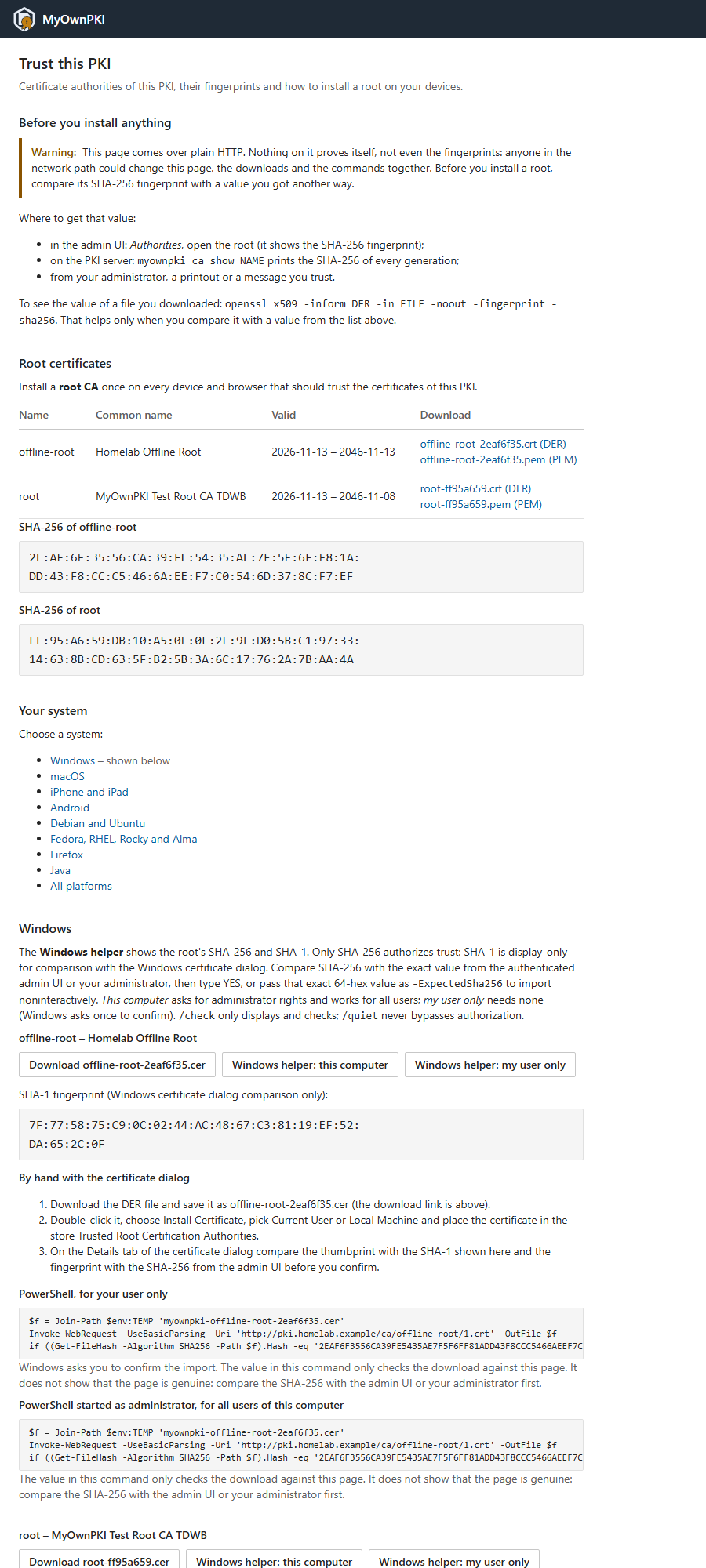
From the top of the page down:
- A warning and where to get the fingerprint. The page comes over plain HTTP, so nothing on it proves itself (the next section).
- The roots. A table with name, common name, validity and the DER and PEM downloads, then the SHA-256 fingerprint of every root. After a root renewal the older generation is listed as well while it is valid.
- Your system. The guess from the browser, and the list of all systems as links.
- The steps for the chosen system, for every shown root: downloads, a numbered list for what you do by hand, and the commands to paste, each with a one-line limit.
- The intermediates as a table of downloads. Servers send them along with their own certificate, so you install nothing; the files are there for servers and tools that need them.
The page lists the active CAs only, and only a generation that has a signed certificate which is not revoked
and valid now. It contains only public data and no script (the Content Security Policy has no script-src).
The first rule: compare the fingerprint
The portal is served by the public listener, which speaks plain HTTP: it has to work before anything trusts your PKI. Whoever controls the network path can change the page, the downloads and the commands together. So nothing on the page proves itself, not even the fingerprints it shows. Compare the SHA-256 fingerprint of the root with a value you got another way before you install anything. Where to get it:
- The admin UI: Authorities, open the root. The page shows the SHA-256 fingerprint.
- On the server:
myownpki ca show NAMEprints the SHA-256 of every generation. - Your administrator, a printout or a message you trust. The admin UI also writes that message for you (below).
- For a file you downloaded:
openssl x509 -inform DER -in FILE -noout -fingerprint -sha256prints its SHA-256. That helps only when you compare the result with one of the values above.
What the hash inside a command proves
The command blocks for Windows, macOS, Linux and Java contain the 64 hex digits of the root’s SHA-256 and the
address of the root’s .crt. The command downloads the file and compares its hash with the digits in the
block, and stops before it installs anything when they differ.
- It proves that the file you downloaded is the file this page described. A download that is damaged, or swapped on the way after the page was loaded, is refused.
- It does not prove that the page is genuine. The digits come from the page. If someone changed the page, they changed the digits and the address together, and the check passes. That is why every block says so, and why the comparison with a value from another source stays the real check.
The Windows helpers (.cmd files, below) are stricter: they contain no expected value
at all.
Pick the platform
The server reads the User-Agent header of the request and picks the steps for the system it names. This is a guess, and the page says so. No script runs: the choice is made on the server from the first 512 bytes of the header, with a fixed table, and nothing of the header is written into the page.
| The header says | The page shows |
|---|---|
| iPhone, iPad, iPod, or “like Mac OS X” | iPhone and iPad |
| Android | Android |
| Windows | Windows |
| Macintosh, or “Mac OS X” | macOS |
| ChromeOS | nothing: the page offers the list |
| Ubuntu or Debian | Debian and Ubuntu |
| Fedora, Red Hat or CentOS | Fedora, RHEL, Rocky and Alma |
| Linux or X11, without a distribution | both Linux blocks |
| anything else, or nothing | nothing: the page offers the list |
The first row that matches wins. Firefox is not a platform of its own: when the browser says Firefox, the page adds a note that Firefox keeps its own list of authorities and links to the Firefox steps. An iPad that asks for the desktop version of web sites looks like a Mac to the page; open the iPhone and iPad steps from the list on it.
The visitor can always choose by hand, and the choice wins over the guess. The links of the list are
/?os=<value>:
Value of os |
Steps shown |
|---|---|
windows, macos, ios, android |
that system |
debian, fedora |
the Debian family or the RedHat family |
firefox, java |
the Firefox import dialog, or the Java keystore |
all |
every system, one after the other |
Any other value counts as not given, and the guess applies: an unknown word, an empty value, a value that is given twice, or one longer than 16 bytes. The value you type is never shown back on the page.
The steps per platform
Each block below is what the page offers for every shown root. Commands appear only when the root’s name and
the CA’s public base URL pass a conservative pattern (http or https, a host of letters, digits, dots and
hyphens, an optional port, an optional path of letters, digits and ._~/-); otherwise the block says to
download the file and compare its SHA-256 by hand. There is never a half-escaped command.
| Platform | What the page offers |
|---|---|
| Windows | The DER file as a .cer file for the certificate dialog; the two Windows helpers; numbered steps for the certificate dialog; two PowerShell blocks, one for your user and one for a PowerShell started as administrator (all users of the computer) |
| macOS | The configuration profile and its steps (System Settings, Privacy & Security, Profiles; older macOS: System Preferences, Profiles); a Terminal block that checks the hash and runs security add-trusted-cert into the System keychain |
| iPhone and iPad | The configuration profile, and the second step: Settings, General, About, Certificate Trust Settings, then switch the root on. Without it iOS installs the root but does not trust it for web sites |
| Android | The certificate file and the path Settings, Security and privacy, More security settings, Encryption and credentials, Install a certificate, CA certificate; menu names differ between vendors and versions, and Android may ask for a screen lock first |
| Debian and Ubuntu | A command block that downloads, checks, converts to PEM, installs under /usr/local/share/ca-certificates/ and runs update-ca-certificates |
| Fedora, RHEL, Rocky and Alma | The same with /etc/pki/ca-trust/source/anchors/ and update-ca-trust |
| Firefox | The import dialog: Settings, Privacy & Security, Certificates, View Certificates, Authorities, then Trust this CA to identify websites |
| Java | A keytool -importcert block for the cacerts file |
Windows
The PowerShell blocks download the .crt, compare Get-FileHash (SHA-256) with the digits in the block and only
then run Import-Certificate. It is one if/else statement, so pasting it line by line cannot import after a
failed check; on a mismatch it deletes the file and writes SHA-256 mismatch: nothing was installed. For your
user the import goes into Cert:\CurrentUser\Root and Windows asks you to confirm it. In a PowerShell started
as administrator the same block imports into Cert:\LocalMachine\Root.
macOS, iPhone and iPad
The profile is a .mobileconfig file at /trust/<name>/<generation>/profile.mobileconfig, served as
application/x-apple-aspen-config. It holds only the public root certificate, one payload of the type
com.apple.security.root, and no date, host name, serial number or other private data. The identifiers derive
from the certificate’s SHA-256, so the same root always gives the same bytes: installing it again replaces the
profile, and a renewed root (another certificate) can be installed next to the old one. The profile is not
signed and the user can remove it at any time (PayloadRemovalDisallowed is false).
iOS and macOS therefore show Not Signed. That is expected: a signature would need a certificate the device already trusts, which is exactly what is missing. Compare the fingerprint before you install. On iOS and iPadOS the profile installs the root, and the second step (Certificate Trust Settings) turns trust on. On a Mac, if Keychain Access still shows the certificate as not trusted, open it, expand Trust and set When using this certificate to Always Trust. The profile has no scope: what macOS does with that (user or system) is one of the points the live test checks.
The Terminal block on macOS is an alternative: it checks the hash with shasum -a 256 -c - and then runs
sudo security add-trusted-cert -d -r trustRoot -k /Library/Keychains/System.keychain root.crt. Safari, Chrome
and Edge use the keychain.
Android
Chrome and most browsers accept a CA installed this way. Apps that target Android 7 (API 24) or higher ignore user CAs unless their network security configuration opts in, so an app can still refuse your certificate. A device management (MDM) system can install the root for all apps. The page gives no command for Android.
Debian, Ubuntu, Fedora, RHEL, Rocky and Alma
This is the Debian block for a root named root; <hex64> stands for the 64 digits of its SHA-256, <8hex> for
the first eight of them, and <url> for the root’s .crt address:
tmp=$(mktemp -d) && cd "$tmp" \
  && curl -fsS -o root.crt '<url>' \
  && echo '<hex64>  root.crt' | sha256sum -c - \
  && openssl x509 -inform DER -in root.crt -out myownpki-root-<8hex>.crt \
  && sudo install -m 0644 myownpki-root-<8hex>.crt /usr/local/share/ca-certificates/myownpki-root-<8hex>.crt \
  && sudo update-ca-certificates
Every line is joined with &&, so a failed check stops everything after it. The block starts in a new
directory made by mktemp -d, so another local user cannot swap or link root.crt between the check and the
install in a shared directory such as /tmp. The directory stays behind after the block; remove it when you
are done. The RedHat block writes myownpki-root-<8hex>.pem into /etc/pki/ca-trust/source/anchors/ and runs
sudo update-ca-trust. curl, wget, Python and most programs use these stores; Firefox, Chrome on Linux and Java
keep their own.
The file names carry the root’s name, the generation of an older one, and the first 8 hex digits of its
SHA-256: myownpki-<name>[-<gen>]-<8hex>.crt. The suffix keeps two certificates apart that would share a name
otherwise (the CA root-2 at generation 1 and the CA root at an older generation 2 would both be root-2).
The downloads in the table of the page use the same base name without myownpki-, for example
root-1a2b3c4d.crt.
Firefox and Java
On Windows and macOS Firefox can use the system store instead of its own: open about:config and set
security.enterprise_roots.enabled to true. This does not apply to Linux. The Java block uses
keytool -importcert without -noprompt: keytool prints the certificate’s fingerprint and asks before it
trusts it, so you compare it there too. changeit in the block is the public default password of Java’s
cacerts file; older Java keeps the file under jre/lib/security. On macOS use shasum -a 256 -c - instead of
sha256sum -c -.
The Windows helpers
For each root the portal offers two .cmd files: this computer (the computer’s store, it asks for
administrator rights itself) and my user only. A helper is one file that is both a batch file and a PowerShell
script. It shows the SHA-256 and SHA-1 of the embedded certificate (SHA-1 is only for comparing with the Windows
certificate dialog), and it imports only when you give it the SHA-256 you took from the admin UI, with
-ExpectedSha256 <value> or by typing YES after your own comparison. /check only displays and never
imports. The file names are <name>[-<gen>]-<8hex>-trust-computer.cmd and ...-trust-user.cmd. Windows may warn
about a downloaded .cmd; that is normal. Every option is in
operations guide §11.1.
For admins: the message and the switch
The root’s page. Open Authorities and a root. Among its properties it shows a Trust portal row:
the address (the base URL plus /), or Switched off in Administration → Tenant settings., or a hint when the
portal does not list this root (the CA is not active, or the certificate waits for its signature, is revoked,
is not valid yet or has expired) or when the base URL is empty or not a plain http:// or https:// address.
Below the properties, Message for your users is a text you copy into a mail or a wiki page. It holds the
address, the root’s name, its SHA-256 fingerprint, one sentence that the value must match what the page shows,
and one sentence about the second step on an iPhone or iPad. It is shown as plain text: nothing is sent
anywhere, and there is no script and no clipboard button. An intermediate shows neither the row nor the message.
The switch. Administration → Tenant settings has the setting trust_page (default on). Its label is
Trust portal at / of the public listener (CA certificates, fingerprints, install steps per platform), and its
help text says: Covers the portal page at /, its ?os= choice, the configuration profile for iPhone, iPad and Mac,
and the Windows helpers. The downloads under /ca/ and /crl/ stay served either way: certificates point to them.
The API field is trust_page of PUT /api/v1/settings. The setting is asked on every request, so a change
applies at once.
What stays when it is off. /, /?os=..., the profile and both Windows helpers answer 404, and the 404 is
the same as for a path that never existed. /ca/<name>/<generation>.crt and .pem and /crl/... keep
answering: certificates point to them. The stylesheets and the logo under /static/ are not switched either.
Caching, redirects and limits
| What | How |
|---|---|
The page at / |
Vary: User-Agent always. Cache-Control: private, max-age=300 when the User-Agent told the page something (a platform, or Firefox), so a shared cache does not keep it; public, max-age=300 when the visitor chose with ?os= or nothing was recognized. ETags work, and so do HEAD and If-None-Match |
| The profile and the Windows helpers | public, max-age=900 with an ETag |
| After you switch the portal off | A shared cache (a proxy in front of the listener) may serve the profile and the helpers for up to 15 minutes, and a page cached as public for up to 5 minutes |
| Redirects | None of the portal’s own routes redirects, and no response carries a Location header. The router in front of them (Go’s ServeMux) answers 307 for a path that is not clean, such as //ca/root/1.crt, before a route runs |
| Rate limit | None. The public listener has no rate limit, no access log and no counters, and the portal writes no audit entry. An installation that is reachable from the internet should limit requests in its reverse proxy |
A request can influence only two things: the platform guess (one row of a fixed table) and the ?os= value
(one entry of an allow-list). Nothing of either is echoed into the page, a header, a file name or a command.
The root in the system trust store of an agent host
An agent host usually needs the root in the system store for the same reason a laptop does: curl and other
programs on that host should trust the PKI’s certificates without a --cacert option. The agent can do this
on request, since v0.3.9. It is off by default and never part of run: the always-running, sandboxed
service cannot write the host’s trust anchors and must not get that right. You run a command as root (or let
Salt run it), and the command adds exactly one file.
What it implies. The root is the one the host already pinned at enrollment (ca_bundle and
--root-sha256), so the option adds no new trust decision, only a wider scope for the same one. After it,
every program on the host that reads the system store trusts that root for every name; the only limit is a
name constraint on the intermediates. The agent can add the CA that issues its own certificates; it never
touches anything else. Firefox and Java keep their own stores and are not affected.
Which hosts. Debian-family and RedHat-family Linux: the ID or ID_LIKE in os-release names debian,
or one of rhel, fedora and centos. Any other host is refused and nothing is changed. The files are fixed:
| Family | File | Command that rebuilds the store |
|---|---|---|
| Debian | /usr/local/share/ca-certificates/myownpki-agent-root.crt |
/usr/sbin/update-ca-certificates |
| RedHat | /etc/pki/ca-trust/source/anchors/myownpki-agent-root.pem |
/usr/bin/update-ca-trust |
Commands
As root:
myownpki-agent trust install --root-sha256 <64 hex digits>
install needs --root-sha256 (the SHA-256 of the root, as the admin UI shows it; exit code 2 without it) and
accepts --no-record and --config FILE. Before it writes anything it checks that the caller is root, that
ca_bundle is a regular file (no symbolic link) with exactly one PEM certificate, that this certificate is a
self-signed CA, and that its SHA-256 equals the value you gave. The bytes it writes are the ones it checked. It
refuses a symbolic link at the directory or the target, and a host without the anchors directory (the CA
certificates package is missing). The file is written through a temporary file in the same directory with mode
0644, and the distribution’s command runs with a fixed argument list, no shell, PATH=/usr/sbin:/usr/bin:/sbin:/bin
and LC_ALL=C, no proxy and no SSL_CERT_* variable, umask 022, a 60 second limit and bounded output. Then it
records system_trust in agent.yaml and keeps the previous file as agent.yaml.bak. --no-record leaves
agent.yaml alone, for a file another tool renders.
- A failed command is rolled back. The previous state of the file is put back (or the file removed), and the command runs once more, so a store that the failed run may have half rewritten is built again from what is there. The error text says how that went.
- Run it again after a failure or with identical content: the file is not rewritten, but the command still runs once. That also makes a file you dropped in by hand effective.
- A different pin than the recorded one replaces the key (a root renewal) after the new value matched
ca_bundle.ca_bundleitself is replaced only bysetup, so runsetupwith the new root first.
myownpki-agent trust status
status reads and writes nothing and needs no root. It compares the fixed file with the pin from agent.yaml
(or --root-sha256) and prints one line. The exit code is 0 only when the installed file is the pinned root;
“not installed”, “differs”, “not configured” and an unsupported host all exit 1. --quiet prints nothing.
myownpki-agent trust remove
remove needs root and a pin (the system_trust key, or --root-sha256). It deletes only the fixed file, and
only when that file holds the pinned root; otherwise it refuses. Then it runs the same command as install, and
removes the key from agent.yaml. When the file is already gone, it still runs the command, so a stale store is
built again, and exits 0. Without the anchors directory nothing runs. A failed command puts the file back.
In agent.yaml, with setup, and in config check
system_trust:
  root_sha256: "<64 hex digits>"
The key is absent by default, which means off. The value is the pin, 64 hexadecimal digits without colons. An
agent older than 0.3.9 refuses this key and does not start (unknown keys are errors on purpose), so update the
agents first (Upgrade). Writing the key by hand does not install anything:
trust install does.
setup --system-trust (next to the --root-sha256 that setup always needs) does the same after enrollment,
for an admitted and for a waiting host, never for a denied one. It refuses an unsupported host before it writes a
file. If the install fails, setup itself is done and says to run trust install after fixing the cause.
myownpki-agent config check prints a line system trust: off, installed: … with the file and the pin, not installed (…) or
differs: … with the command to run. The two last are information and exit 0.
It exits 1 only when system_trust does not match the root in ca_bundle. config check reads ca_bundle,
which setup writes with mode 0600 for root: run as another user it says that ca_bundle cannot be checked against
the pin, and exits 0. Run it as root for the full check; trust status never reads ca_bundle.
With Salt
The formula has the pillar key myownpki:agent:system_trust, a boolean. With true it adds the state
myownpki-agent-system-trust after setup: trust install --root-sha256 <root_sha256>, skipped when
trust status --quiet --root-sha256 <root_sha256> already says yes, with no restart and no change to the unit.
With config_source Salt owns agent.yaml, so the state passes --no-record. false or absent creates no
state, and the formula never removes the root: set the key to false, then run myownpki-agent trust remove
on the host. The formula refuses system_trust that is not a boolean, true on a minion whose os_family is
neither Debian nor RedHat, and true with a version older than 0.3.9. More in
Rolling out with Salt.
When something does not work
| What you see | Meaning and fix |
|---|---|
/ answers 404 |
The setting trust_page is off, or you opened the admin listener instead of the public one (:8080, or :80 behind a proxy) |
| The page shows the wrong system | The header is a guess. Choose the system from the list; an iPad that asks for the desktop version looks like a Mac |
| A block shows no command and says to compare by hand | The root’s public base URL is empty or unusual (for example it holds a space or a user name). Fix it in the CA’s settings, or install by hand |
A command stops with FAILED from sha256sum, or SHA-256 mismatch |
The download is not the file the page described. Do not install. Compare with the admin UI |
| iOS installed the profile but Safari still warns | The Certificate Trust Settings switch is off |
trust install says must run as root |
Run it with sudo or as root |
trust install says the host is not supported |
Only Debian-family and RedHat-family hosts: the ID and ID_LIKE of /etc/os-release are shown in the message |
More symptoms are in Make clients trust your root and in Troubleshooting.
Next steps
- The task, platform by platform, with the manual steps: Make clients trust your root.
- Why a root needs this care: How trust works.
- The complete text, with the routes and the profile: operations guide chapter 11 and §12.12.