
A tour of the web UI
This page shows what each screen is for, what you can do there and which role it needs, so that you
know where to look before you have an instance in front of you. The pictures come from a demo instance
(myownpki init --demo) with sample certificates under homelab.example, taken in an earlier release.
The pictures of Reports and Analysis are from v0.3.8 and come from a demo instance with extra sample
data (agents, alerts, endpoints). Your menu can have more entries than these pictures, for example
Agents, Alerts and Endpoints; an entry is hidden when your role cannot use it. There is a light and a
dark theme.
The roles are the ones of the glossary: viewer reads, operator also issues, revokes and exports keys, admin also manages CAs, ACME approvals, agents and settings, and an instance admin unseals the server and manages users. Actions that change what the PKI trusts or reveal a key ask for a fresh second factor first (a step-up). The guides linked in each section go deeper.
- Sign in
- Unseal
- Dashboard
- Reports
- Analysis
- Certificate authorities
- Certificates
- Certificate detail
- Issue wizard
- ACME accounts
- ACME new names
- ACME orders
- Users and roles
- Audit log
- Legacy import
- Offline signing
- Pages without a picture here
Sign in
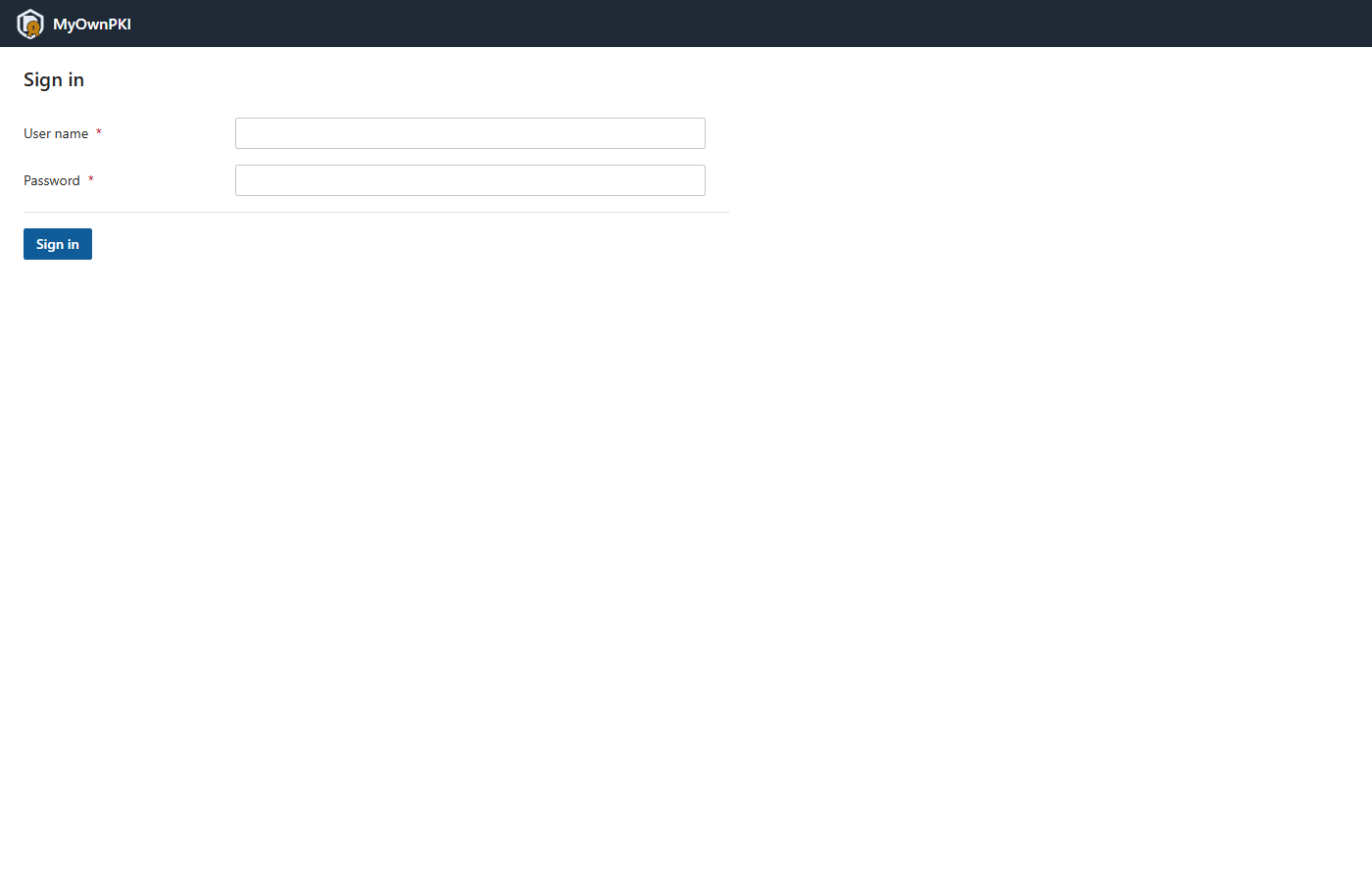
The sign-in page asks for the user name and the password. It shows nothing about the instance. After the
password it asks for the code of the authenticator app (or a recovery code). Every user has a second
factor. Ten wrong passwords lock the account for 15 minutes; an instance admin can unlock it, or
myownpki user unlock NAME at the server.
Role: none; this is where roles start. More: Users, roles, second factor and API tokens and Troubleshooting.
Unseal
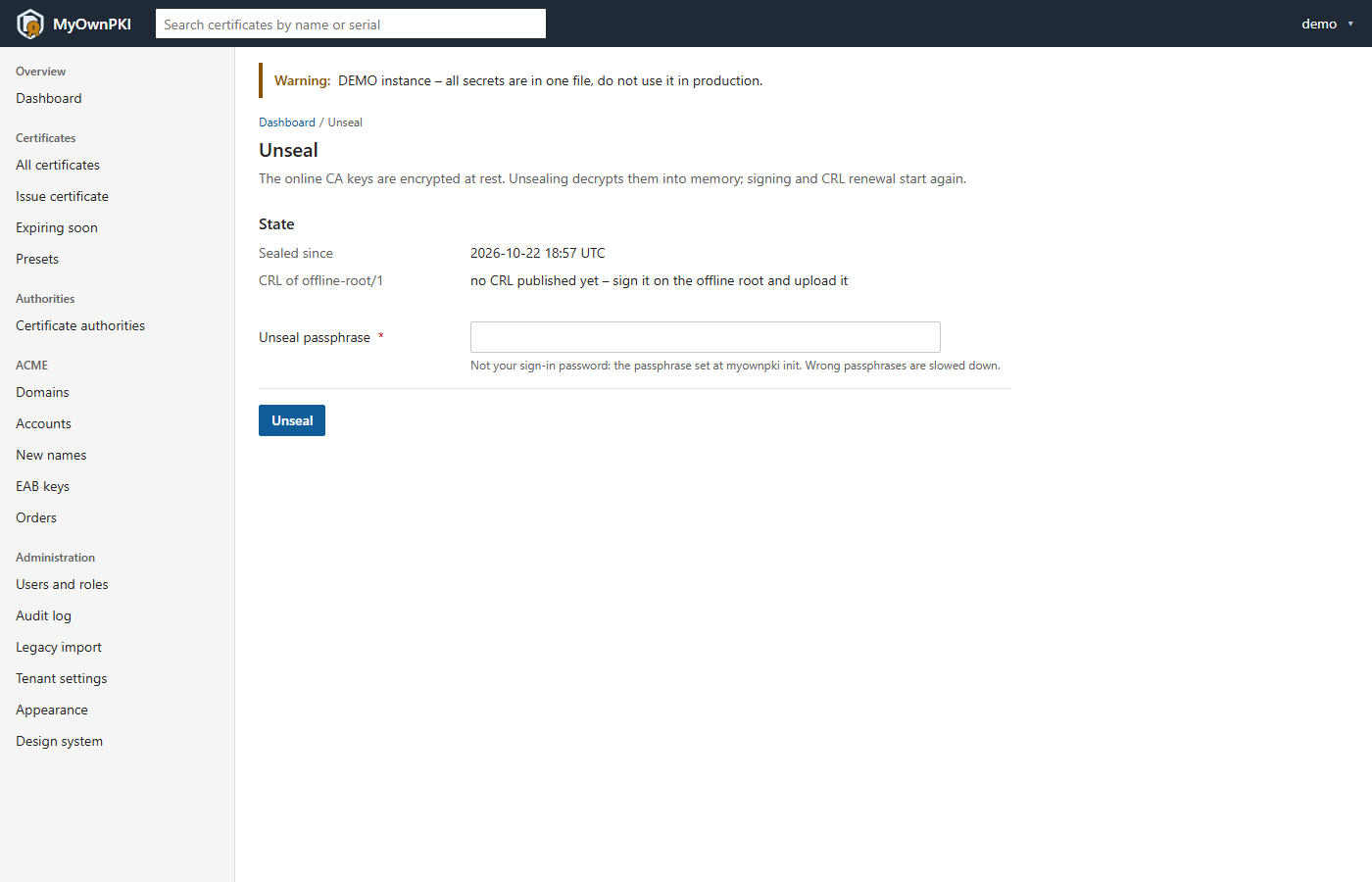
The server starts sealed after every start. While it is sealed the UI works and the CRLs and CA certificates are served, but nothing is signed. A banner on every page says so and links here. The page shows since when the server has been sealed and which CRLs are missing or about to run out, and asks for the unseal passphrase. It is not your sign-in password. Wrong passphrases are slowed down, and every attempt is audited.
Role: instance admin. Everybody else sees a message that an instance admin must unseal. More: Keys and unsealing and Know what a sealed server means.
Dashboard
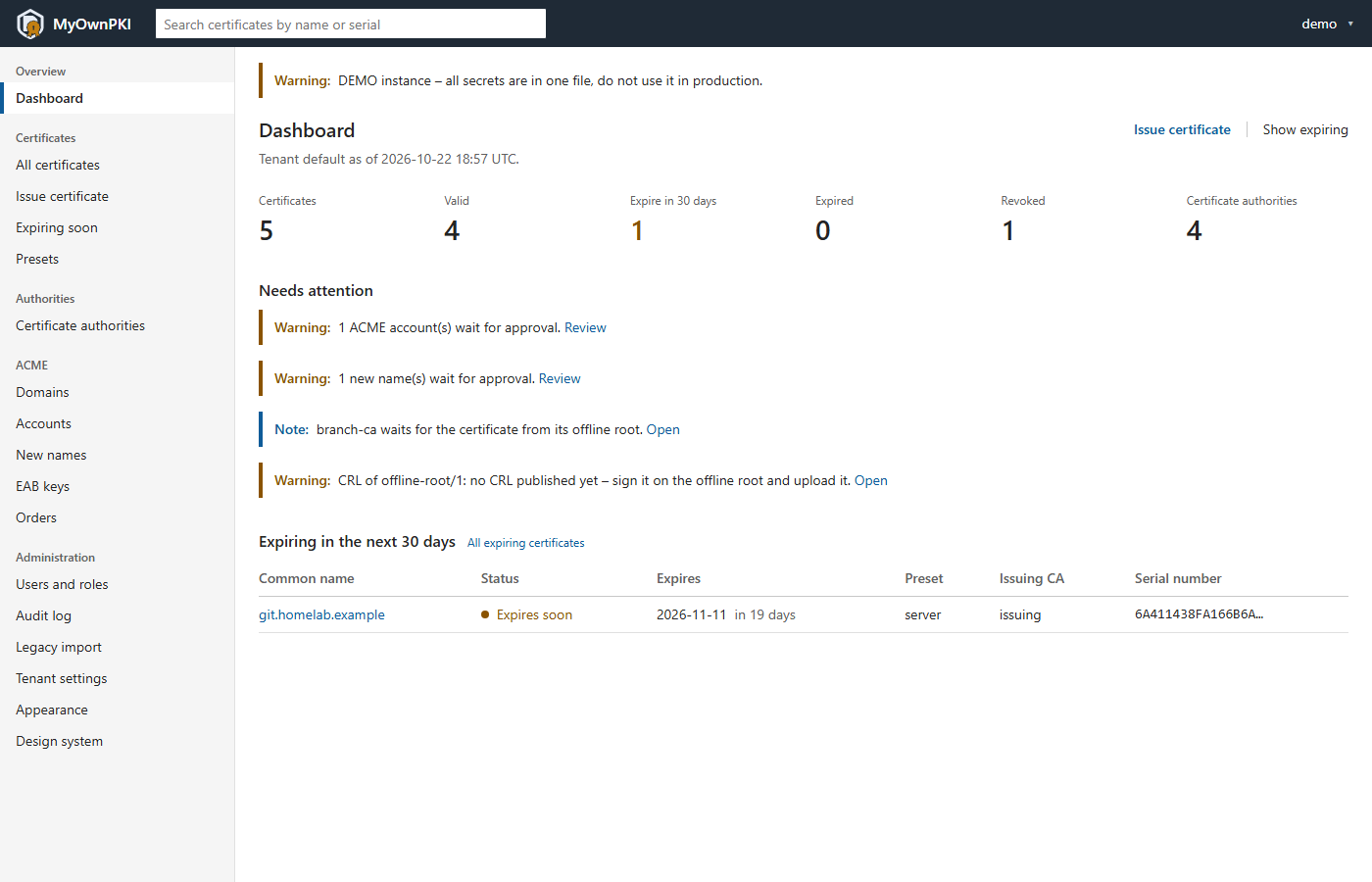
The first page after sign-in. The figures count certificates (all, valid, expiring within 30 days, expired, revoked) and CAs. Needs attention lists what waits for you: ACME accounts and new names that wait for approval, a CA that waits for its signature from the offline root, a CRL that is missing or about to expire. Below it are the certificates that expire in the next 30 days. When monitoring is configured, open alerts show here as well. For a role that may read the reports, two charts follow the table (Expiry and Authorities), each in a fold that can be closed.
Role: viewer or higher; the charts need a tenant-wide role. More: Monitoring and Reports and analysis.
Reports
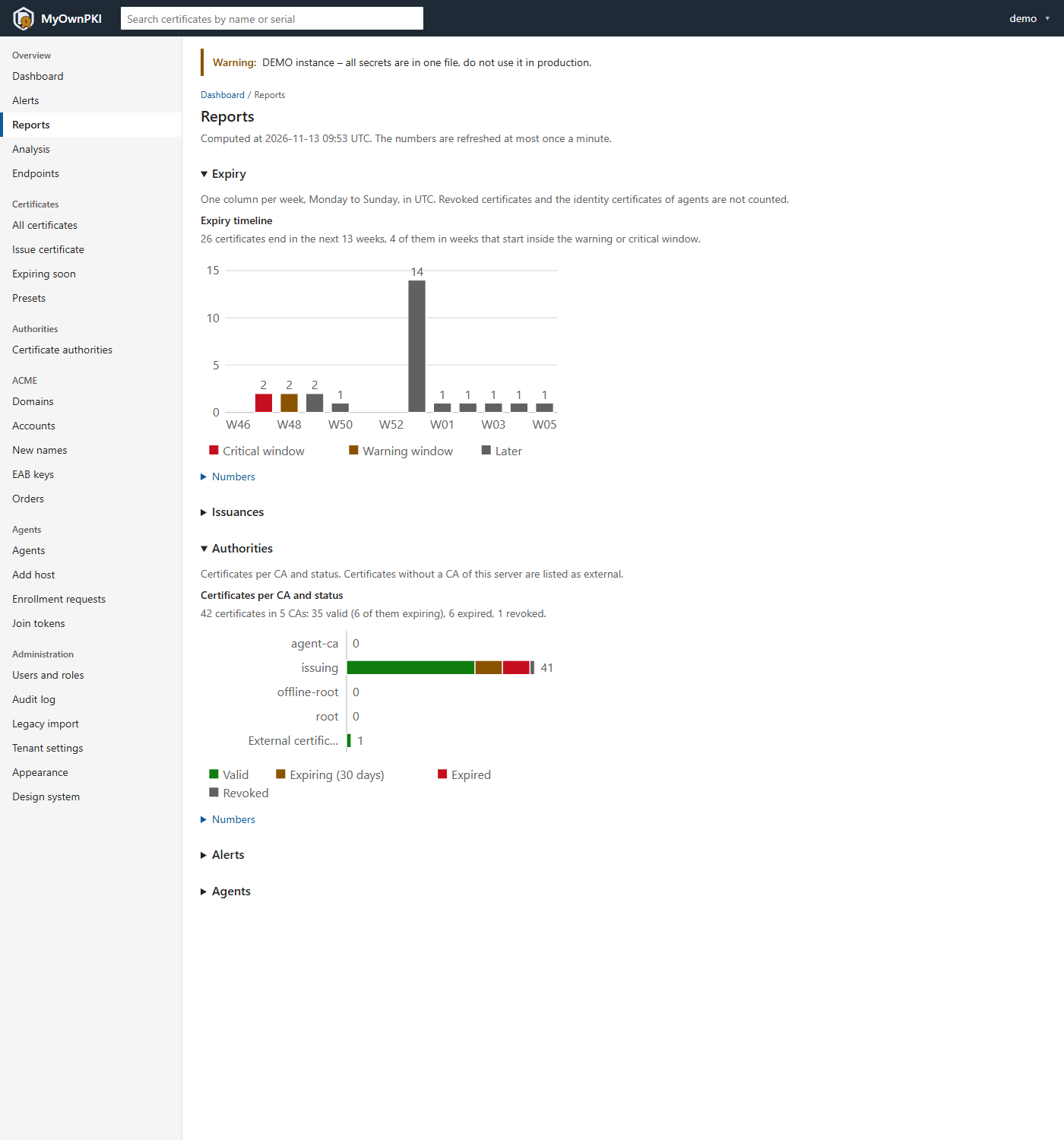
Five sections, each a fold with a chart, a sentence that says what is counted and a table of the exact numbers: Expiry (certificates that end in the current week and each of the next 12 weeks, colored by the warning and critical windows of the monitor), Issuances (the last 12 weeks by source: ACME, agent, UI and API), Authorities (certificates per CA by status), Alerts (opened per week, the last five weeks) and Agents (state, version and deployments, only with the agent listener on). The page says when it was computed; the numbers are refreshed at most once a minute. The charts are plain SVG: no script runs on the page.
Role: viewer or higher with a tenant-wide role; a role limited to one CA gets a 403 page and no menu entry. More: Reports and analysis.
Analysis
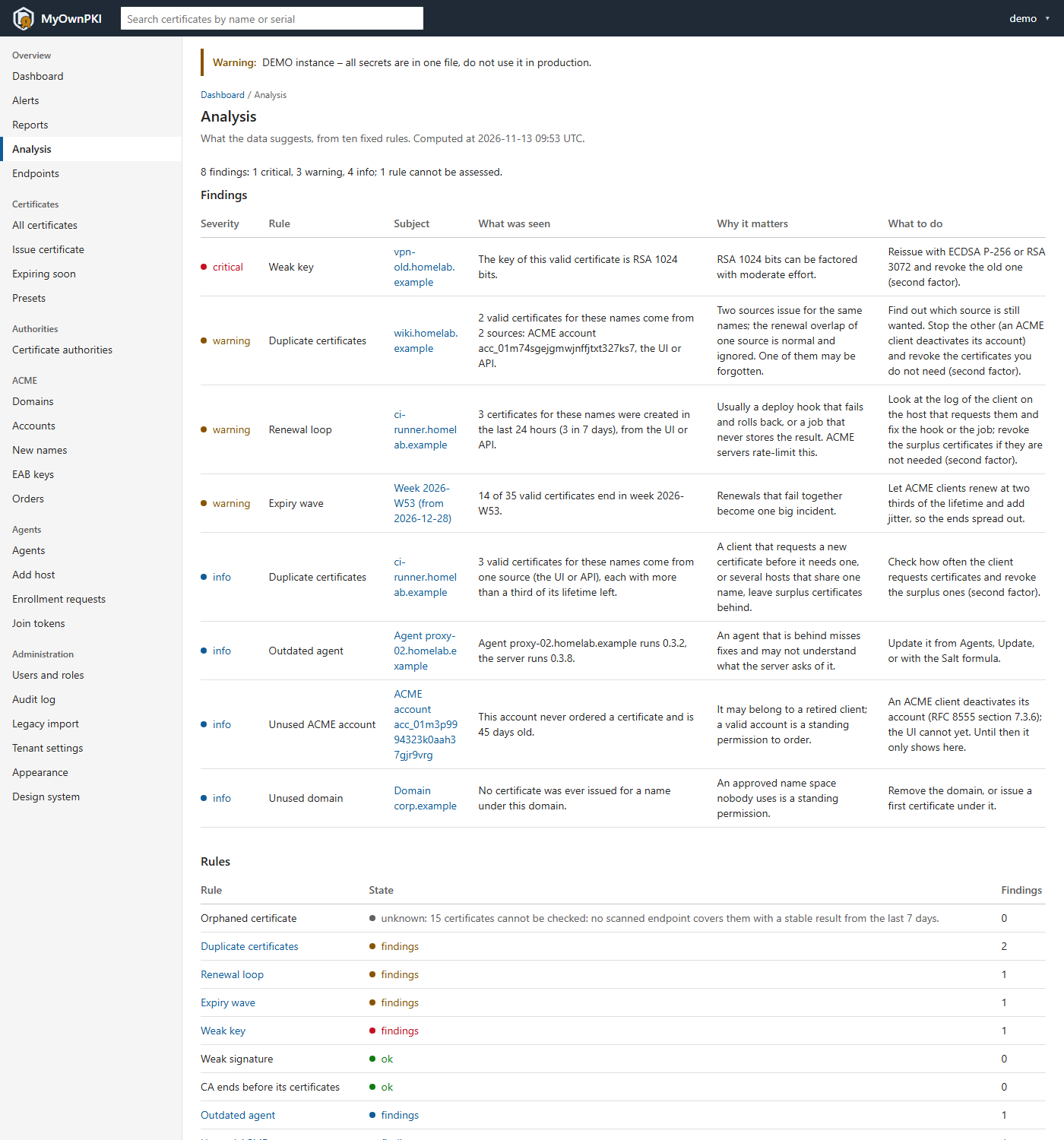
What ten fixed rules found in the data the server holds: an orphaned certificate, duplicates, a renewal loop, an expiry wave, a weak key or signature, a CA that ends before its certificates, an outdated agent, an unused ACME account or domain. Each finding says what was seen, why it matters and what to do, and its subject links to the page of the certificate, CA, agent, domain or account. Under the findings the Rules table shows the state of every rule. A rule that lacks the data to judge says unknown with the reason, which is not a problem. The analysis is advice only: it raises no alert and nothing can be dismissed.
Role: the same as Reports. More: Reports and analysis.
Certificate authorities
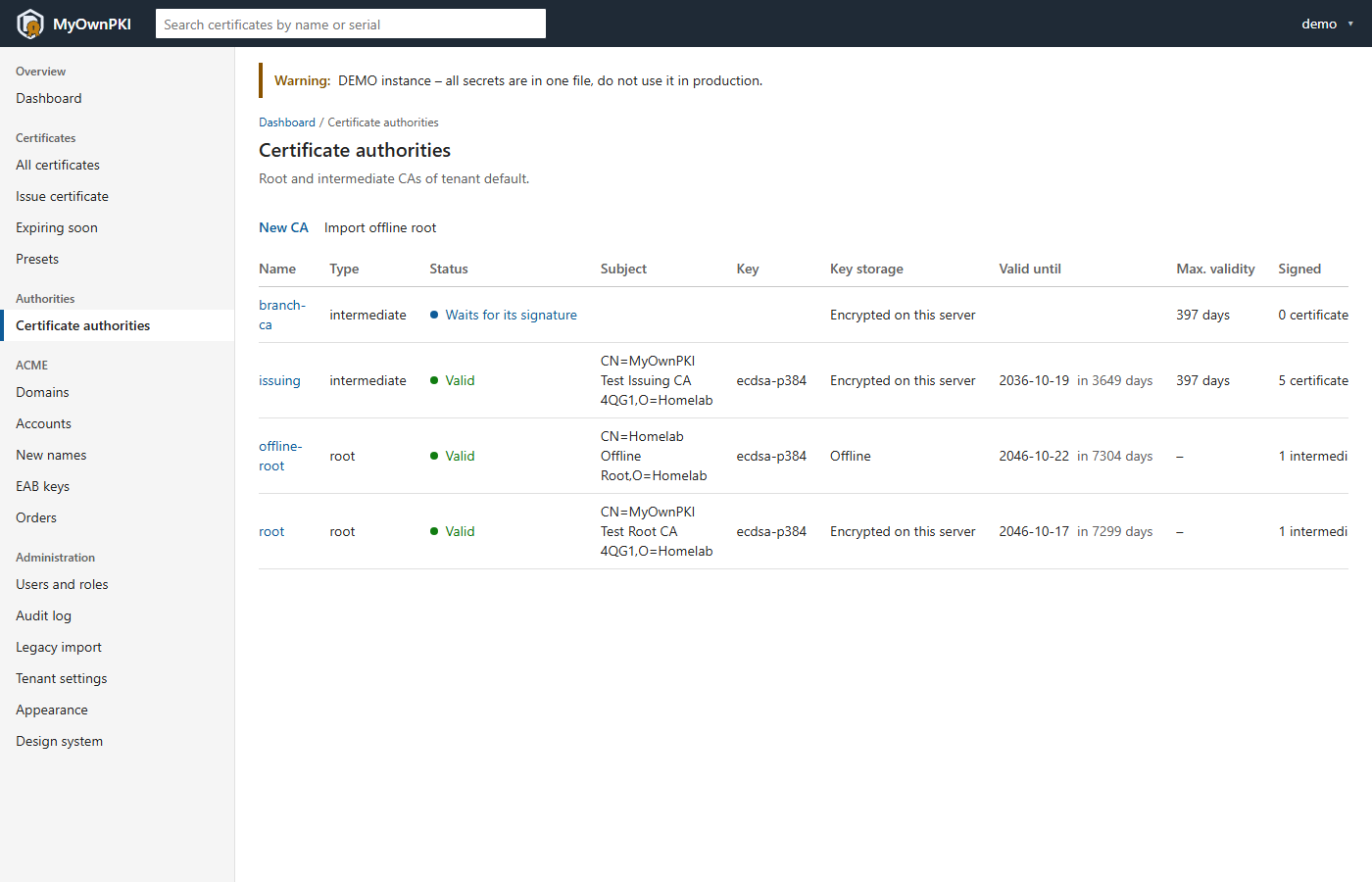
Every CA with its type (root or intermediate), status, subject, key algorithm, where the key lives (Encrypted on this server or Offline), when it ends, its maximum validity and how many certificates it has signed. New CA creates a root or an intermediate; Import offline root adds a root whose key stays elsewhere. A CA’s own page shows its details and holds the actions for it, such as renewing and retiring it.
Role: viewer or higher to read. Creating, importing, renewing, retiring and revoking CAs, and uploading a root’s CRL, need admin and a fresh second factor. More: CA lifecycle, Root and intermediate CAs and Keep the root offline.
Certificates
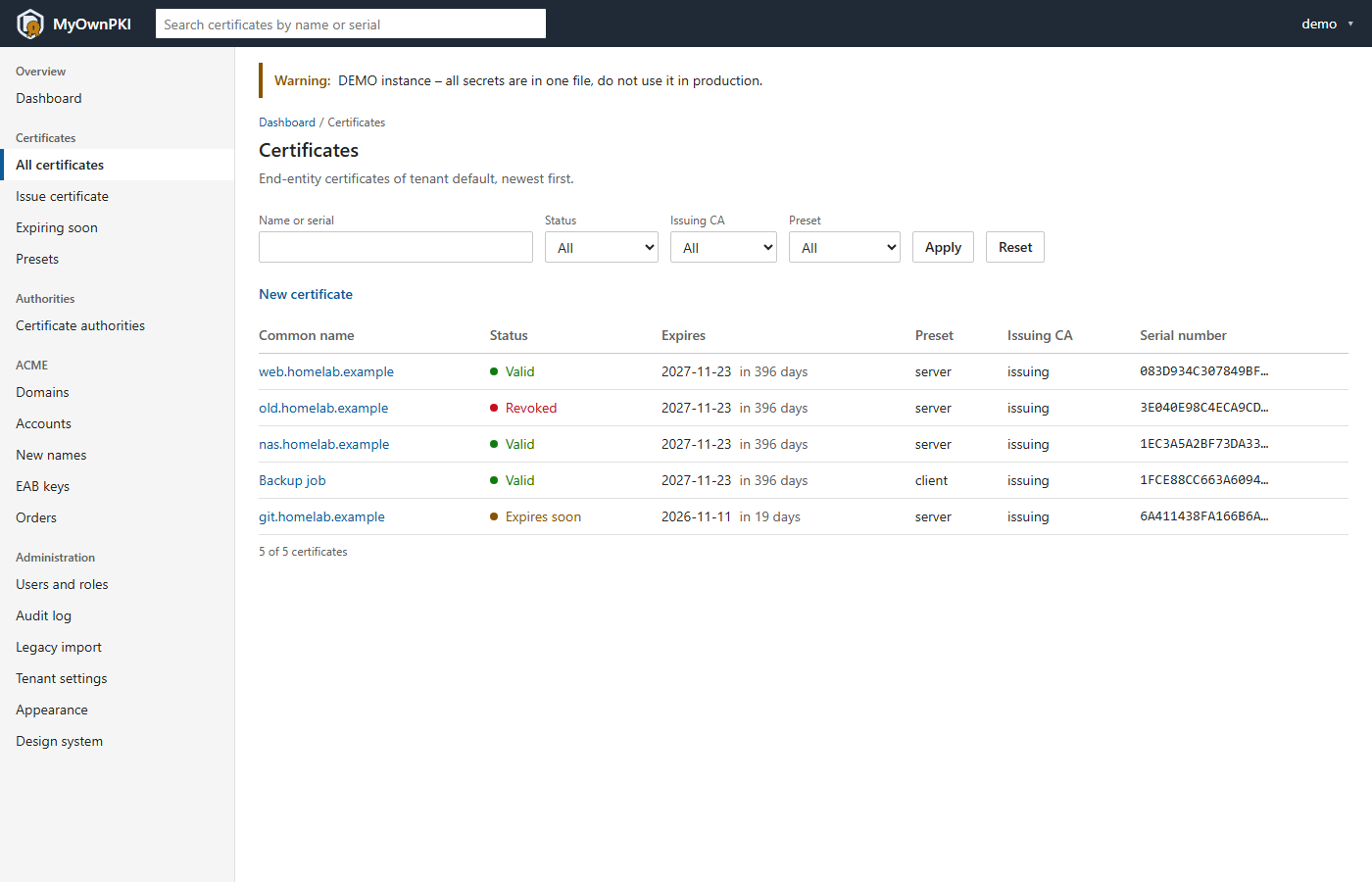
The end-entity certificates of the tenant, newest first, with common name, status (valid, expiring soon, expired, revoked), end date, preset, issuing CA and serial number. Filter by name or serial, status, CA and preset; the search box in the header does the same. New certificate opens the issue wizard.
Role: viewer or higher. More: Issue a first certificate in the web UI and Renew and revoke certificates.
Certificate detail
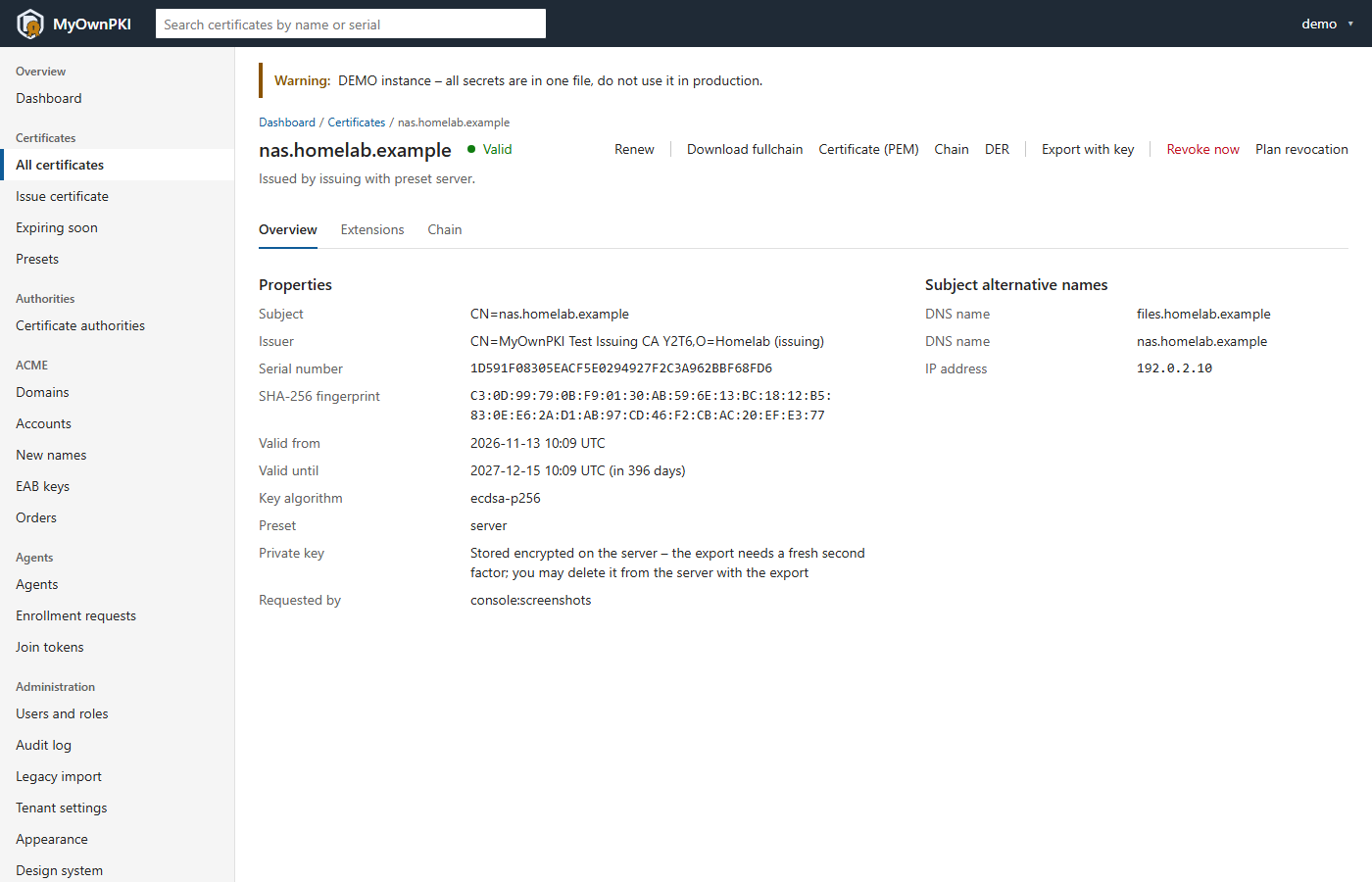
One certificate with its subject, issuer, serial number, SHA-256 fingerprint, validity, key algorithm, preset, who requested it and its subject alternative names. The tabs Extensions and Chain show the extensions and the chain up to the root. The actions are Renew, the downloads (fullchain, certificate, chain, DER), Export with key and Revoke. A key that the server generated is stored encrypted, and the export needs a fresh second factor and can delete the key from the server afterwards.
Role: viewer or higher to read. Renewing needs operator or admin; revoking and exporting a key need operator or admin and a fresh second factor. More: Reading a certificate, Revocation and Renew and revoke certificates.
Issue wizard
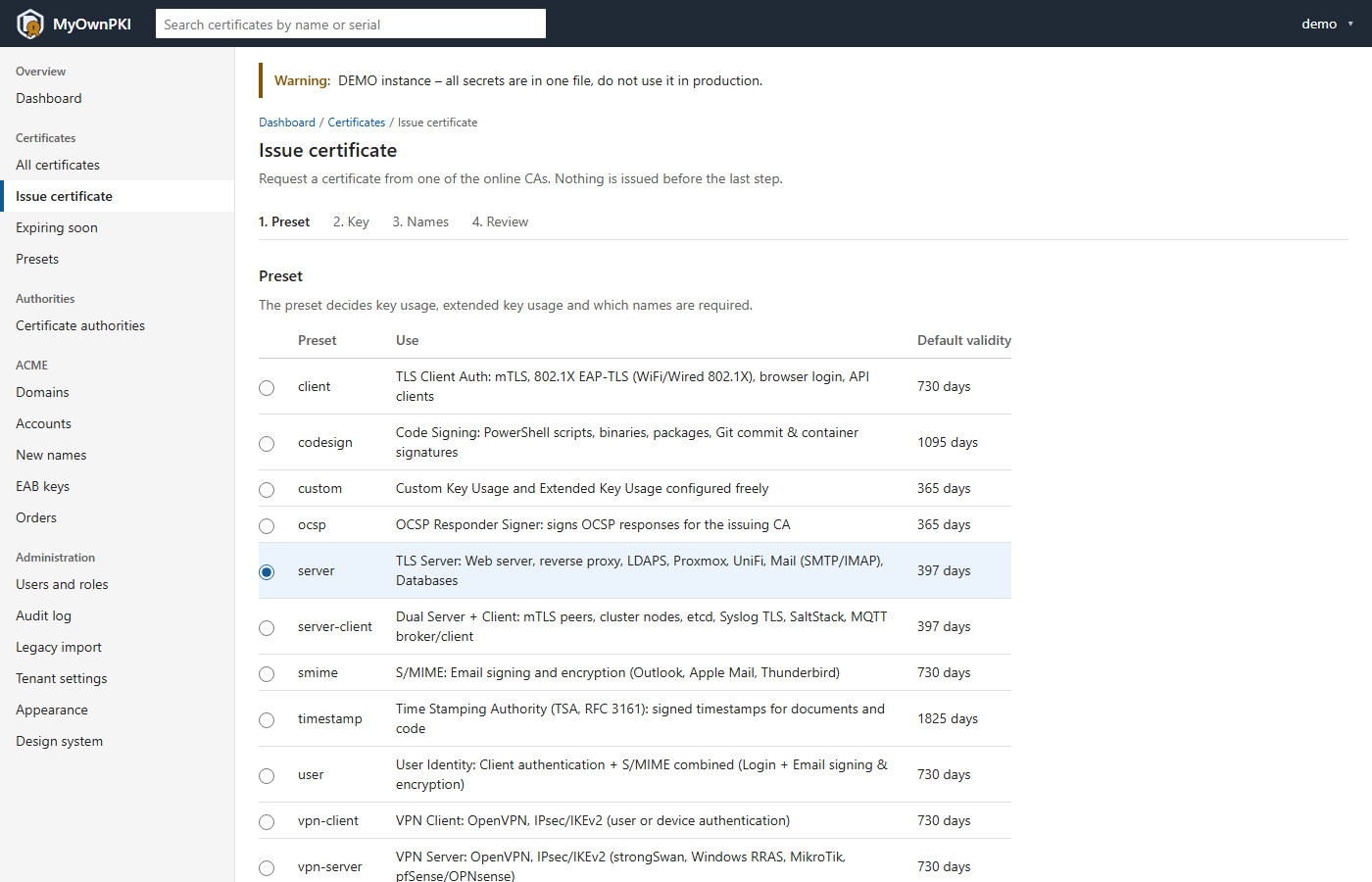
Four steps: Preset, Key, Names, Review. Nothing is issued before the last one. The preset decides key usage, extended key usage, which names are required and the default validity. In the key step you paste a CSR (the default; the key stays on the host that made it) or let the server generate the key if your tenant allows that. The last step is the review. Before it signs, the engine checks the request against the policy and the CA’s name constraints.
Role: operator or admin, and only for the CAs your role covers. More: Issue a first certificate in the web UI and Name constraints.
ACME accounts
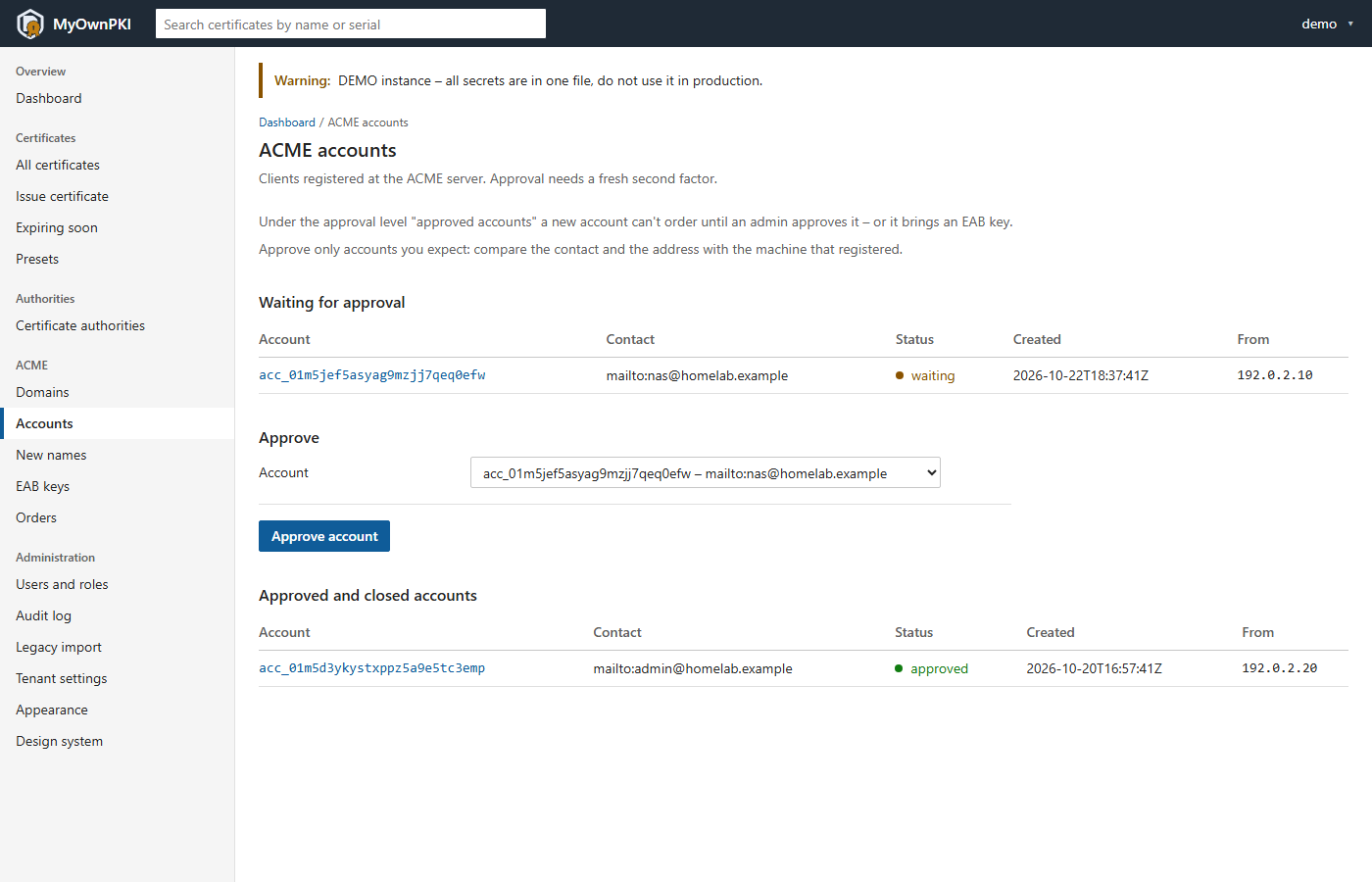
The ACME clients that have registered an account. Under the approval level approved accounts (the default of a domain) a new account waits here until an admin approves it, unless it brought an EAB key. The page tells you to compare the contact and the address with the machine that registered. Approved and closed accounts are listed below. An account’s page also holds the renewal policy for the old certificate.
Role: viewer or higher, with a tenant-wide role, to read. Approving needs admin and a fresh second factor. More: Domains, approvals and EAB keys and ACME explained.
ACME new names
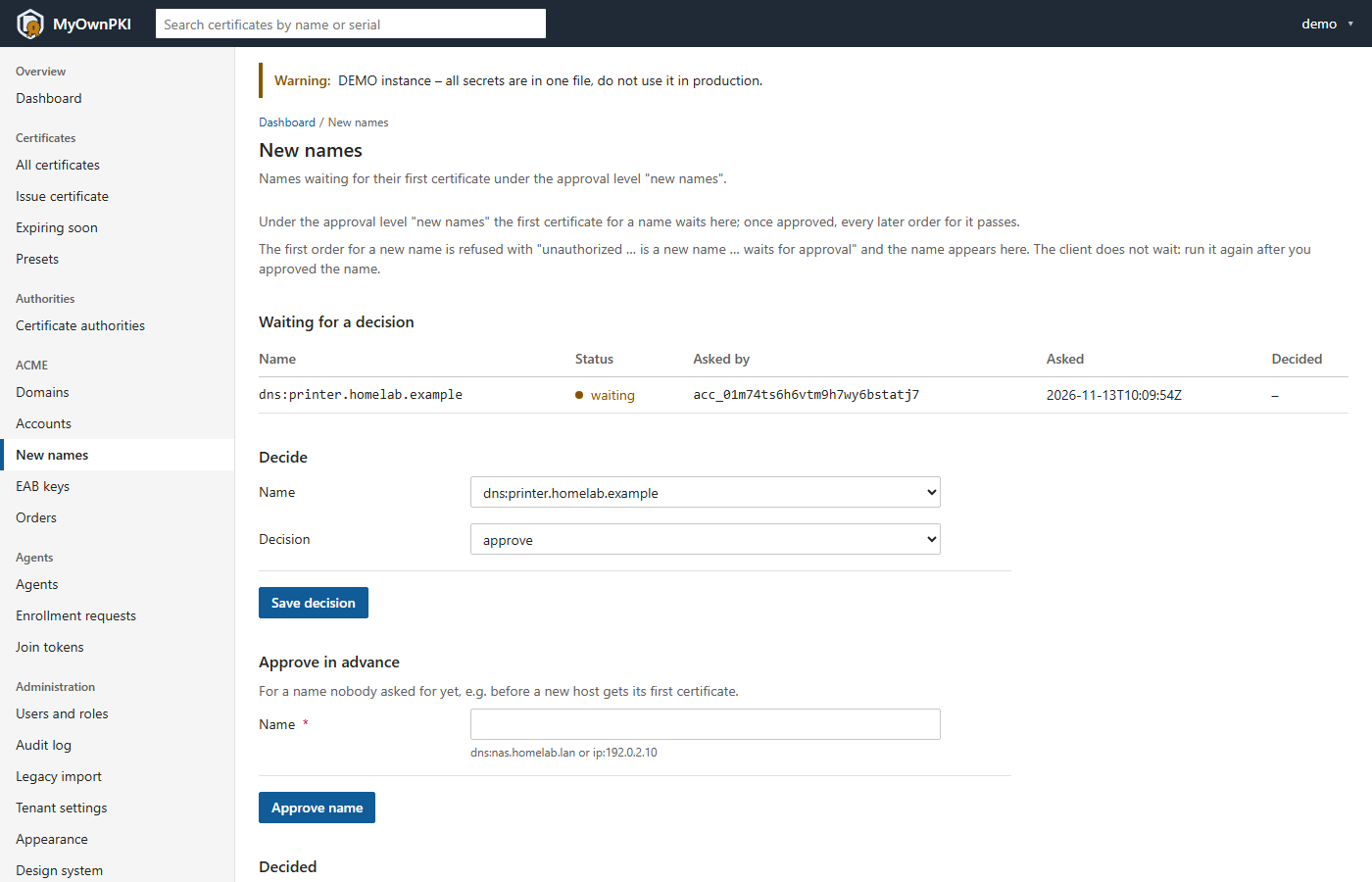
Under the approval level new names, the first certificate for a name waits here; once you approve it,
every later order for that name passes. The first order is refused with unauthorized … is a new name … waits
for approval; the client does not wait, so run it again after you approved the name. You can also approve a
name in advance, for a host that has not asked yet, as dns:nas.homelab.lan or ip:192.0.2.10.
Role: the same as for accounts: read with a tenant-wide viewer role, decide with admin and a fresh second factor. More: Domains, approvals and EAB keys.
ACME orders
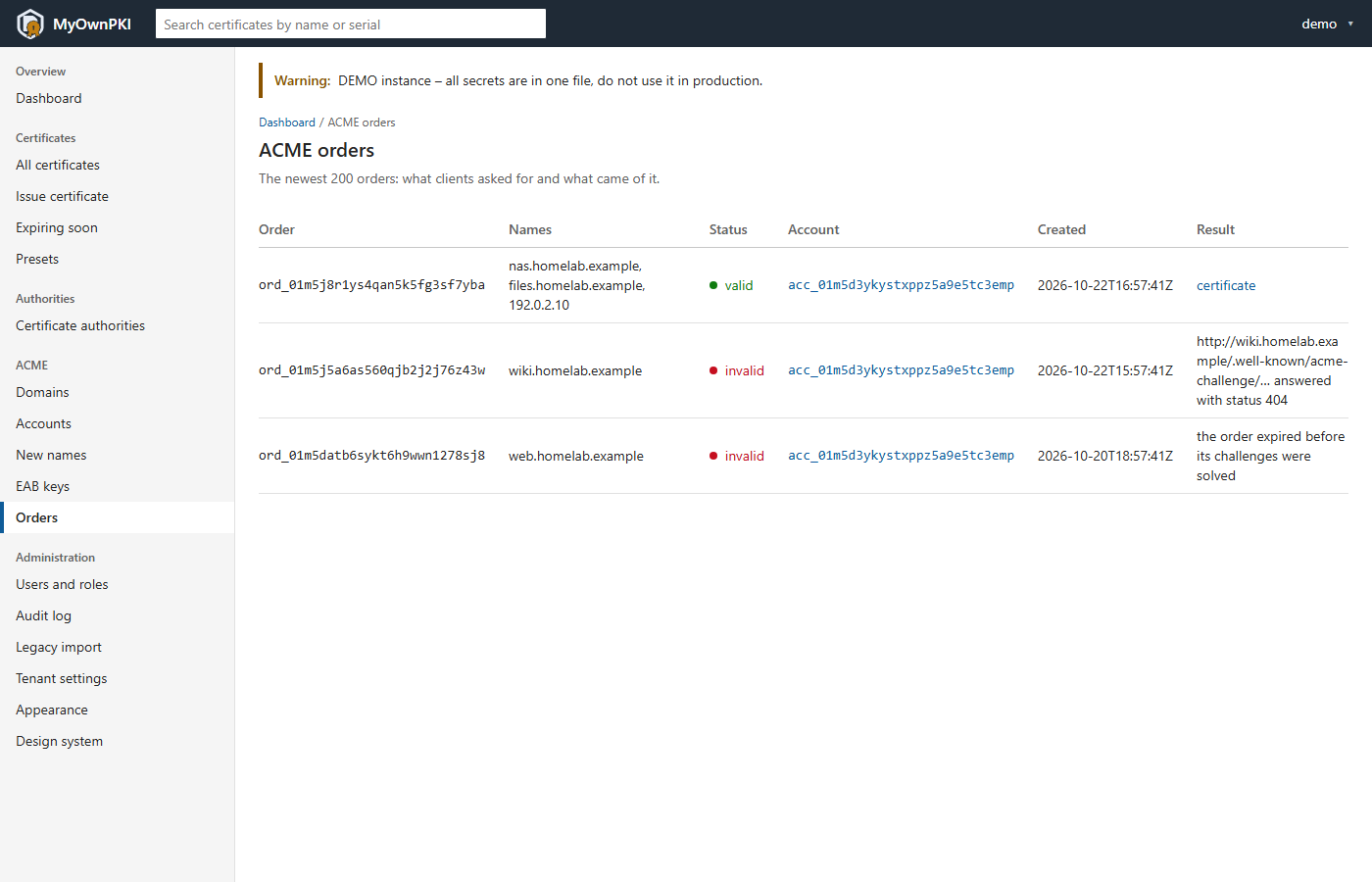
The newest 200 orders: what clients asked for and what came of it. A valid order links to its certificate; an invalid one says why, in the words of the validator, for example that the client’s web server answered with status 404 or that the order expired before its challenges were solved. This is the first place to look when a client reports a failure.
Role: viewer or higher with a tenant-wide role. More: operations guide §10.9, Troubleshooting and Split DNS and the network for validation.
Users and roles
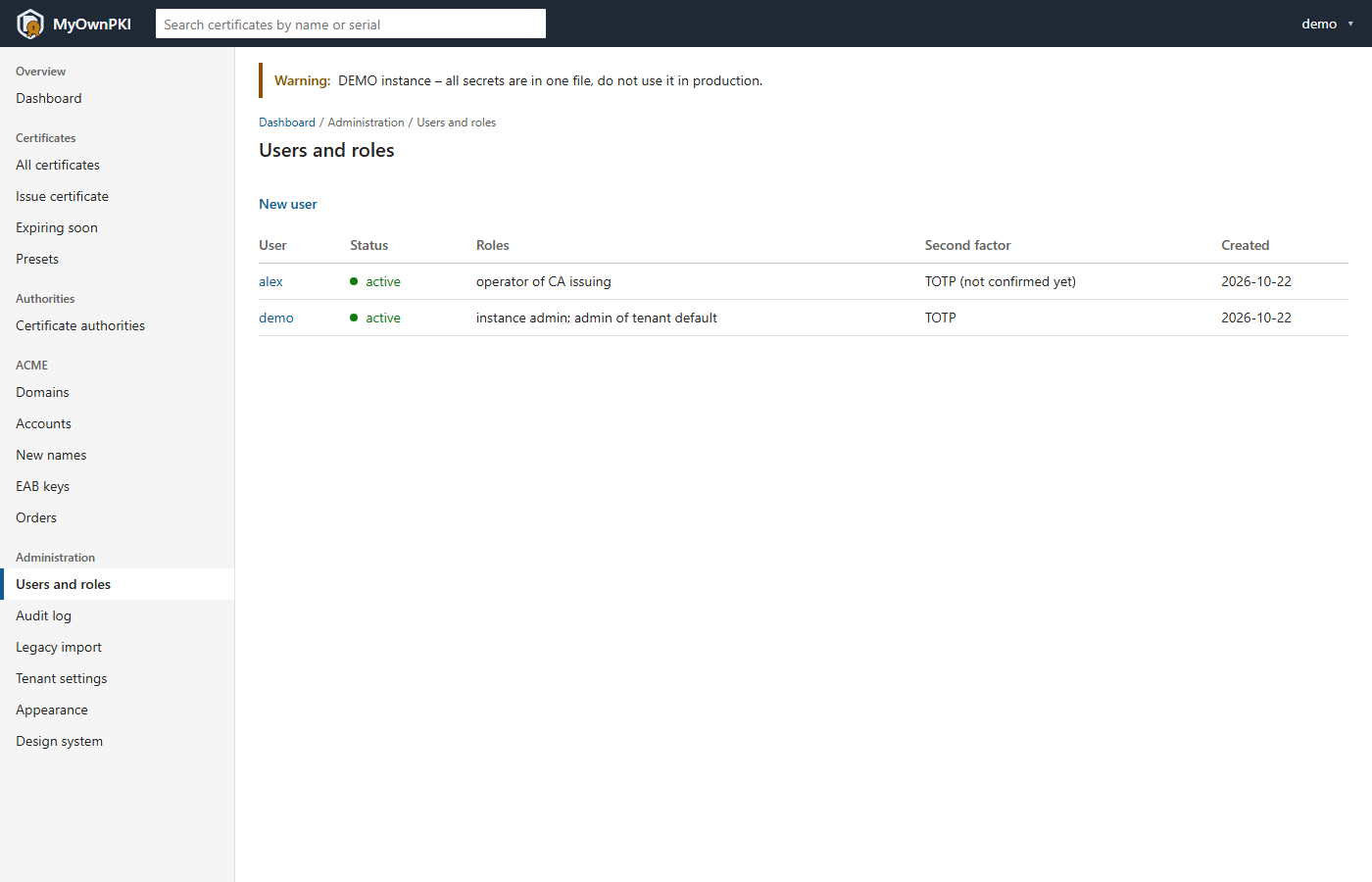
Every user with status (active, disabled, locked), roles (an instance admin, or a role in the tenant,
optionally for one CA) and second factor. New user creates one; a user’s page gives and removes roles,
unlocks a locked account and disables or enables the user. Users are never deleted, only disabled, because
their ID is in the audit log. A lost authenticator is reset at the server with myownpki user reset-2fa;
the UI cannot do that yet.
Role: instance admin. The entry is hidden for everyone else, and changes need a fresh second factor. More: Users, roles, second factor and API tokens.
Audit log
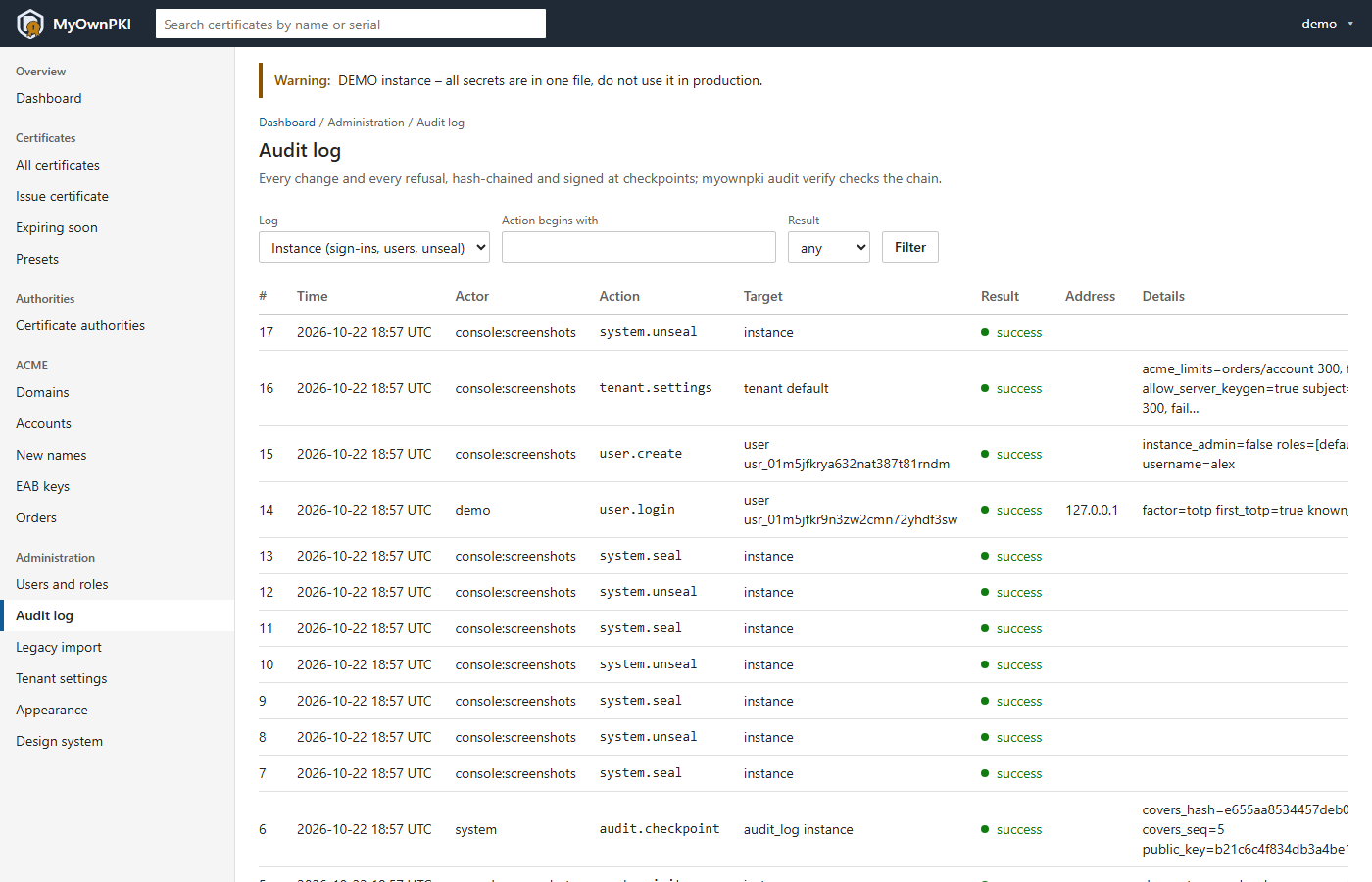
Every change and every refusal, in a hash chain with signed checkpoints. The first filter chooses the log:
the instance log (sign-ins, users, unseal) or the tenant log (certificates, CAs, ACME, agents). The other
filters are the start of an action name and the result (success, failure, denied). The page shows what
happened; myownpki audit verify proves the chain is intact.
Role: the tenant log needs a tenant admin; the instance log needs an instance admin. A viewer or operator has no Audit log entry. More: The audit log.
Legacy import
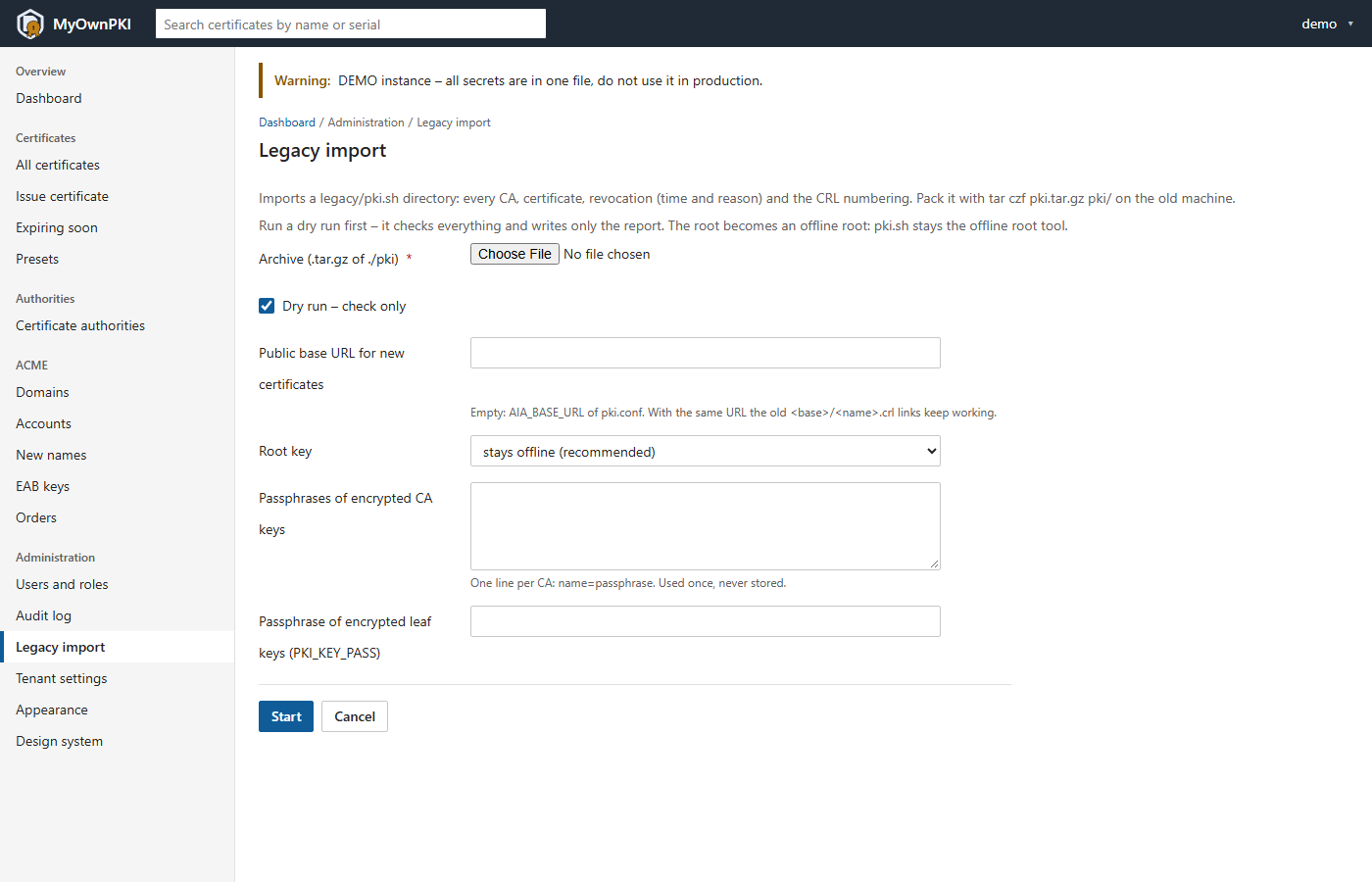
Imports a directory made by the old Bash suite pki.sh (pack it with tar czf pki.tar.gz pki/): every CA,
certificate, revocation with time and reason, and the CRL numbering. Dry run is on by default and writes
only the report. The root becomes an offline root unless you choose to import its key. The same import is
myownpki import legacy at the command line.
Role: admin with a fresh second factor; the entry is hidden for other roles. More: Move from the old Bash suite and operations guide §5.
Offline signing
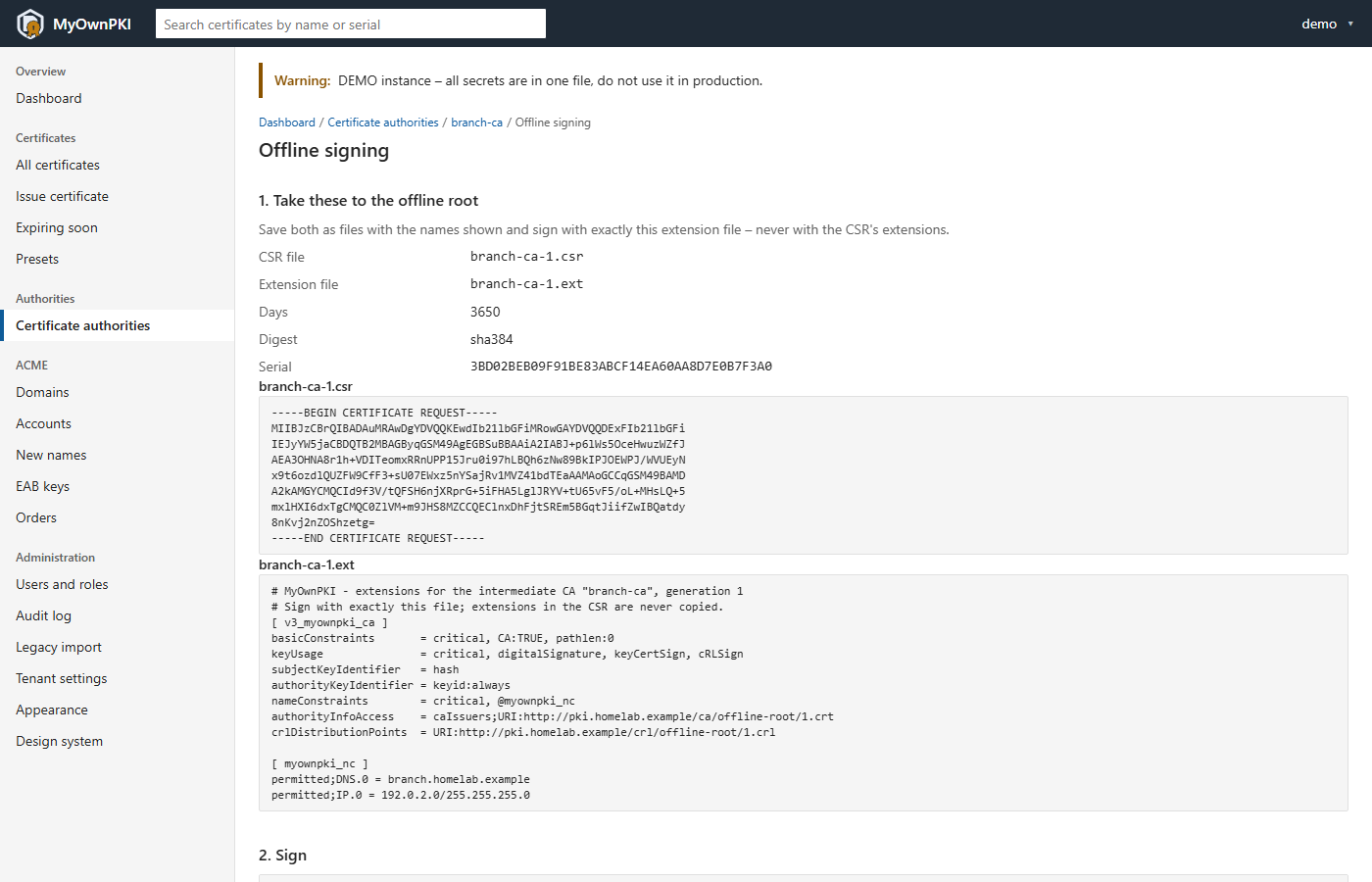
An intermediate below an offline root waits for a signature. Step 1 gives you a CSR and an extension file;
you take both to the machine that holds the root key and sign with exactly that extension file, never with
the extensions of the request. Step 2 shows the command. Step 3 takes the signed certificate back, and the
server checks it against the order (key, subject, CA:TRUE, key usage, path length, name constraints, EKU,
parent signature) before it activates the CA.
Role: admin, on the CA’s page, with a fresh second factor for the upload. More: Sign with an offline root and Root and intermediate CAs.
Pages without a picture here
- Alerts lists what the server watches and works while sealed. Viewer or higher, tenant-wide. Monitoring.
- Endpoints lists the TLS endpoints the server scans. Viewer reads, operator and admin scan now, admin adds and removes. TLS scan.
- Agents and Add host manage hosts that run the agent. Reading is viewer or higher; adding a host, join tokens and approvals need admin and a fresh second factor. Adding hosts.
- Domains and EAB keys hold the ACME rules and the keys that skip approval; creating either needs admin and a fresh second factor. Domains, approvals and EAB keys.
- Presets shows what each kind of certificate gets, read-only.
- Tenant settings holds the step-up lifetime, the ACME rate limits, whether the server may generate keys, the default subject fields, the trust page switch, the predecessor defaults and the agent enrollment mode. Viewers and operators read, an admin changes, and a different enrollment mode needs a fresh second factor. operations guide §4.