
Domains, approvals and EAB keys
When to use this
The ACME server issues for a name only when a domain covers it. Use this page to add the first
domain, to choose who may order for it, and to deal with what waits for a decision: new accounts, new
names and clients that bring an EAB key. An ACME client that gets rejectedIdentifier or “waits for
approval” is a reason to be here. Everything below needs the role admin with a fresh second factor
(ca.manage on the tenant), and the ACME server must be on (acme.base_url is set, see
Reverse proxies).
- When to use this
- Steps: add a domain
- Who may order: the approval level
- Steps: approve accounts and names
- Steps: create an EAB key
- Check it worked
- When it fails
- Next steps
Steps: add a domain
- Open ACME → Domains and press New domain.
-
Fill in the form. The important fields:
Field What to choose Domain Lower case, at least two labels, for example homelab.lanSigning CA An online intermediate whose name constraints permit the domain and whose EKU limit allows serverAuth Names below the domain too Tick it for nas.homelab.lanunderhomelab.lanWildcards *.homelab.lan, proven by dns-01 only; off by defaulthttp-01, dns-01 The challenges that prove control. http-01: the server fetches a file from the client’s port 80. dns-01: it reads a TXT record Approval Who may order, see the next section Preset and validity The profile of the certificates; empty validity means 90 days, never beyond the CA’s maximum Addresses http-01 may reach internal networks too (homelab), or public addresses only (Split DNS) IP ranges Which IP addresses may appear in certificates, for example 192.0.2.0/24(http-01 only) - Press Create domain. The domain page lets you change every setting later (Save) or delete the domain (Delete domain): certificates already issued stay valid, open ACME orders for its names fail.
The REST API has POST /api/v1/domains; like the UI it needs the second factor, so an API token cannot
create a domain.
Who may order: the approval level
| Level | What happens | Use it for |
|---|---|---|
| open | Any account that passes the challenge gets a certificate | A closed lab network |
| approved accounts (default) | A new account waits until an admin approves it, or it brings an EAB key | Most homelabs |
| new names | The first certificate for each name waits for an admin; later orders for it pass | Hosts you want to know about before they get a certificate |
Narrow the rest with the CA: its name constraints limit the names whatever you tick here.
Steps: approve accounts and names
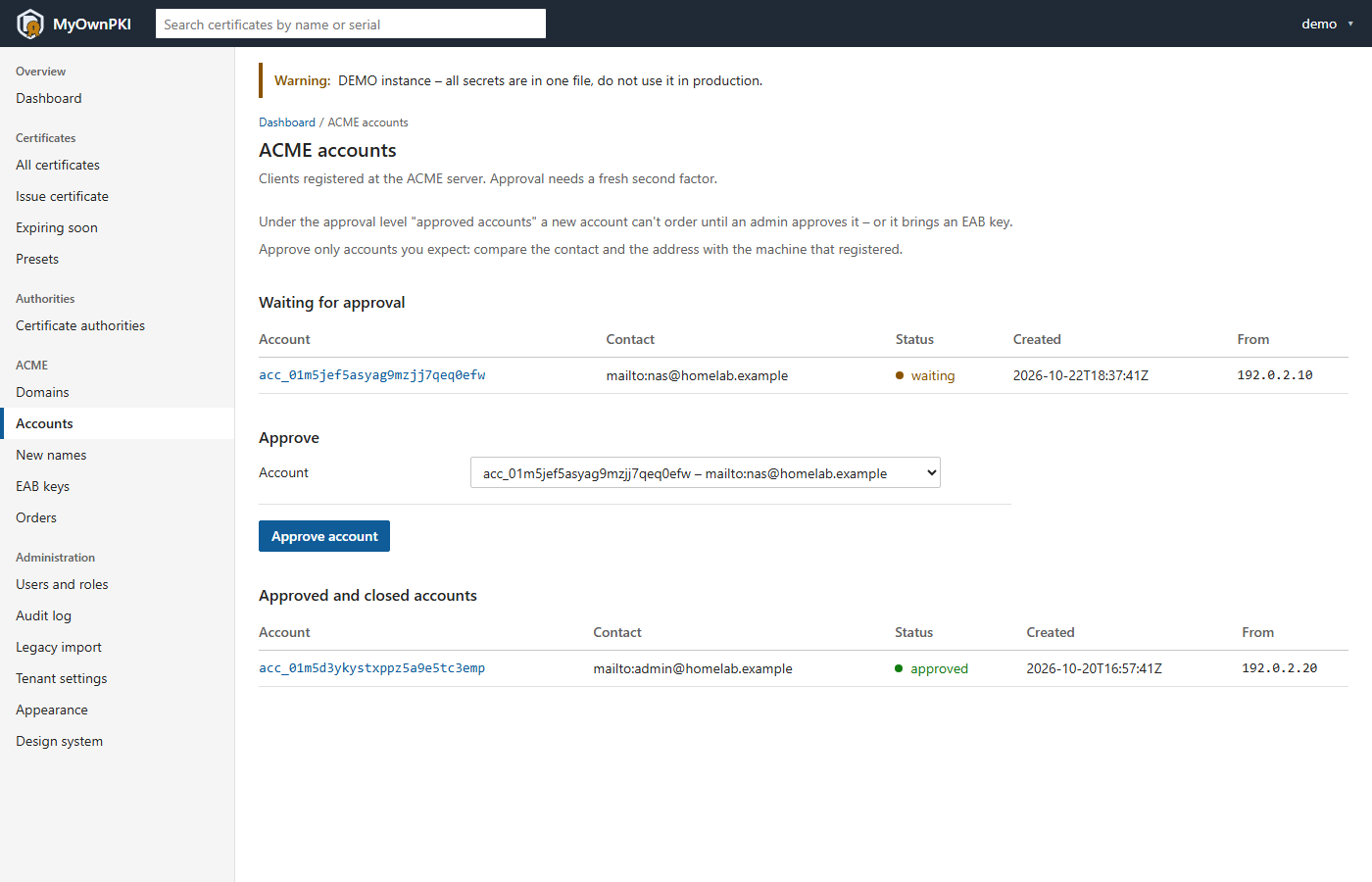
- Accounts. A client that registers under approved accounts appears under Waiting for approval, and the dashboard says that accounts wait. Compare the contact and the address (From) with the machine you expect, choose the account, press Approve account, and confirm the second factor. The client gets its certificate on the next run.
-
New names. Under new names the first order for a name is refused with “… is a new name for domain … and waits for approval”, and the name appears on ACME → New names. Choose the name under Decide, then approve or refuse, and save. Run the client again after the approval; the order is not kept for it.
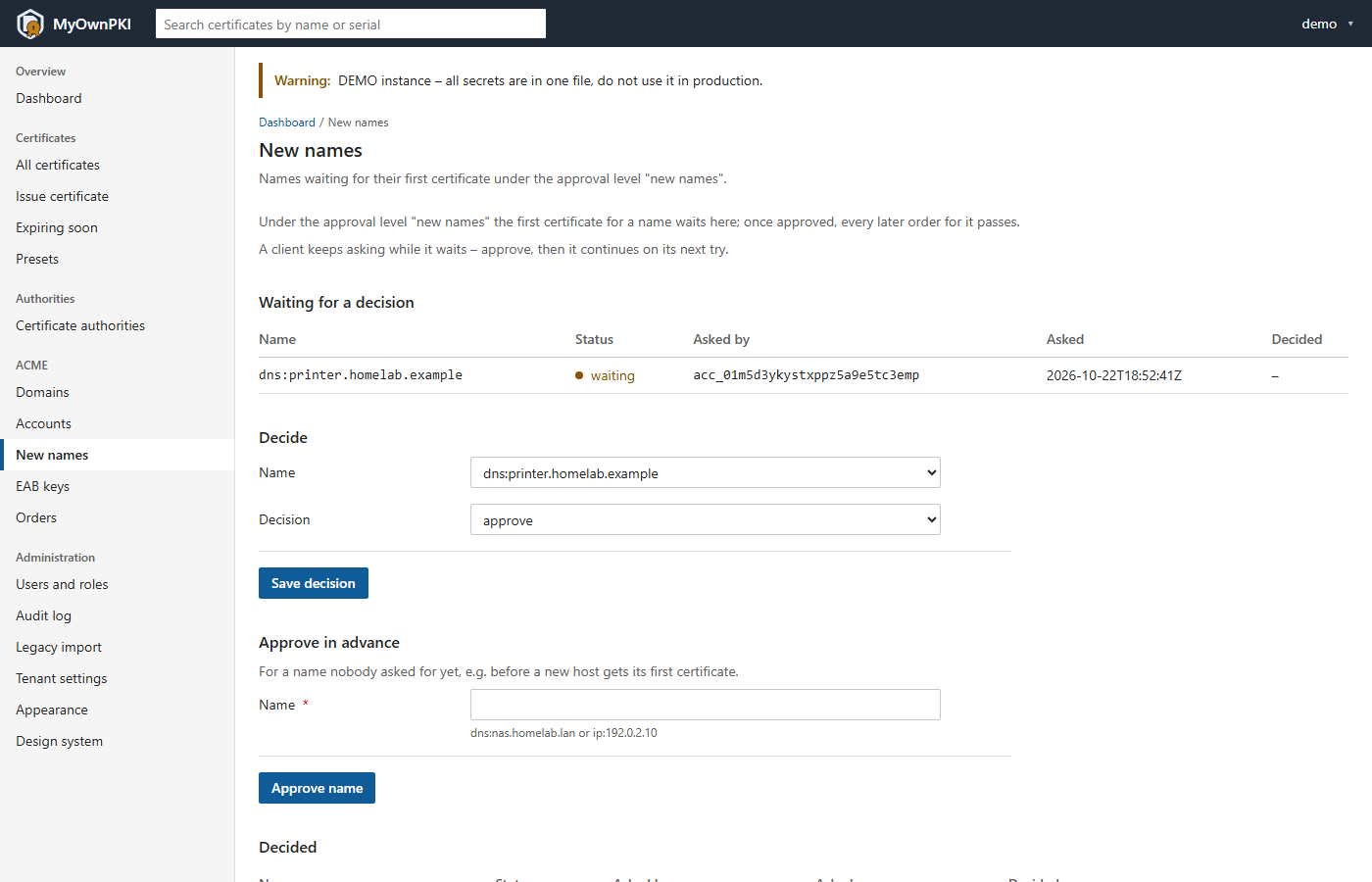
- In advance. Approve in advance takes a name nobody has asked for yet, written as
dns:nas.homelab.lanorip:192.0.2.10, for example before a new host gets its first certificate. -
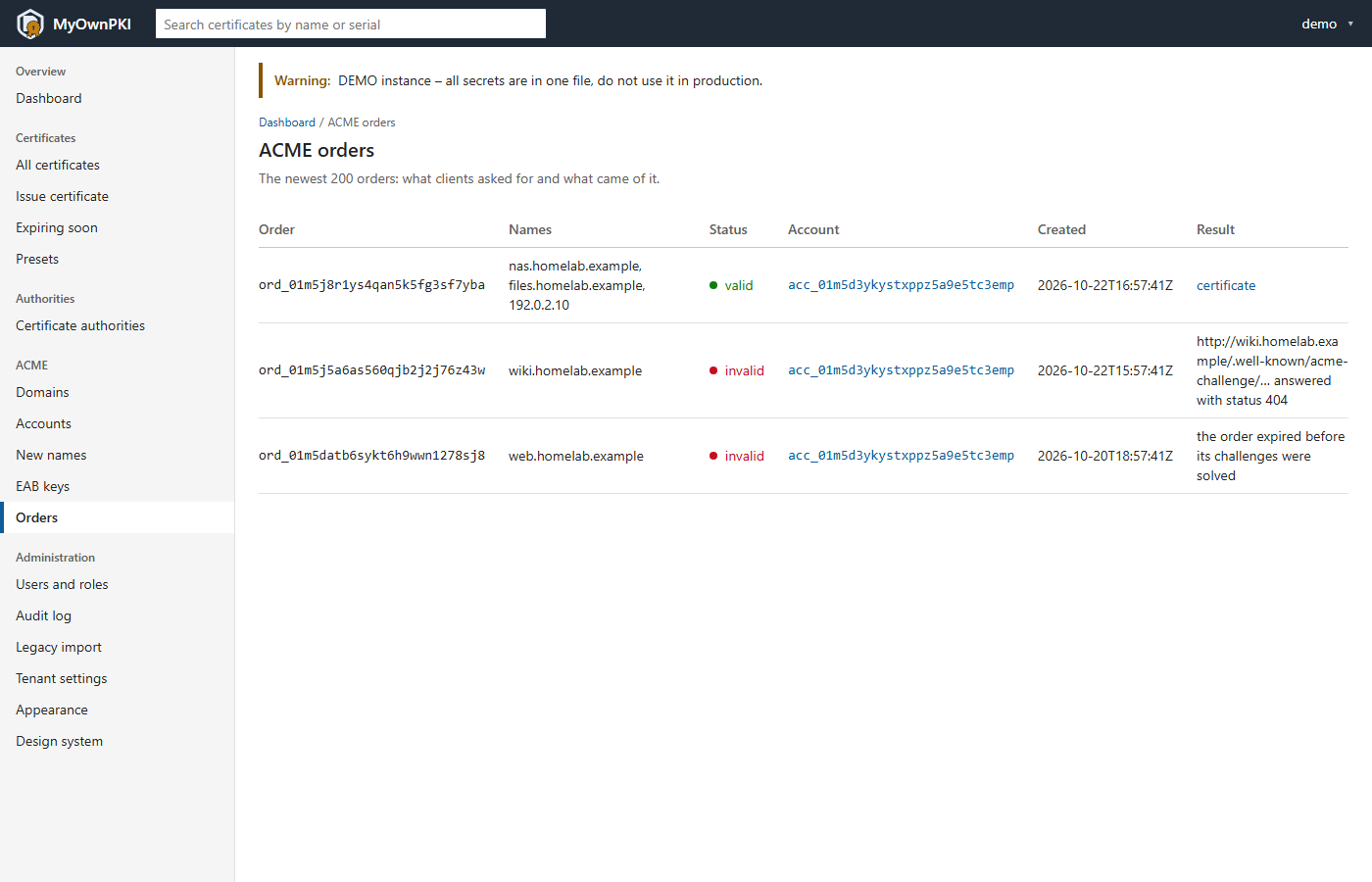
See what clients asked for. ACME → Orders lists the newest 200 orders with their names, status and result: a link to the certificate, or the reason it failed.
The pages offer Approve for accounts and approve or refuse for names. There is no button to reject an account; an account that you do not approve simply never orders. Account and name approvals, and EAB keys, are done in the UI: the OpenAPI file has no operation for them.
Steps: create an EAB key
An EAB key (external account binding) lets one client skip the approval queue: it signs its first registration with the key.
- Open ACME → EAB keys, enter a label (the host that will use it), and the days the key may stay unused (1 to 90, default 7). Press Create key. The server must be unsealed.
- The next page shows the key ID and the MAC key once, with command lines for lego and certbot. It is not shown again and cannot be recovered: hand it over like a password.
- Give both values to the client (Certbot, acme.sh, lego).
- The list shows each key as unused, expired or used by an account. A key binds one account.
Revoking an EAB key. Version 0.3.6 has no button or REST operation to withdraw an EAB key. An unused key expires after the days you chose, so keep that number small. A key that was used is spent: it has bound its account. Whoever approves accounts decides what that account may order, through the domain’s approval level.
Check it worked
Run the client again. In the UI, ACME → Orders shows the order as valid with a link to the certificate,
and ACME → Accounts lists the account as approved. The audit log has every account, order,
validation, approval, EAB key, issuance and revocation under the actor acme:<account>.
When it fails
| The client says | Usually | What to do |
|---|---|---|
rejectedIdentifier: no domain covers … |
No domain for the name, or a wildcard on a domain without wildcards | Add the domain or tick Wildcards |
unauthorized: account … waits for approval |
Approval level approved accounts | Approve the account, or use an EAB key |
unauthorized: … is a new name for domain … and waits for approval |
Approval level new names | Decide the name under ACME → New names, then run the client again |
| Creating an EAB key is refused | The server is sealed | Unseal it first (Installation) |
| An approval sends you to a second-factor page | Approvals need a fresh second factor | Confirm with your authenticator |
The full table is in operations guide §10.9; the details of the settings are in §10.5. More in Troubleshooting.
Next steps
- Get a certificate: Certbot.
- Check that the validator can reach your hosts: Split DNS.
- Limit who may do what in the tenant: Best practices.
- dns-01 for wildcards works with ACME clients, and with the MyOwnPKI agent since v0.3.7: dns-01 and wildcard certificates. The agent’s Names it may order must hold the identical
*.pattern.