
Issue a first certificate in the web UI
When to use this
Use the wizard for a single certificate that you want now: a host without an ACME client, a device with a web interface, a test. For many hosts, or for certificates that must renew themselves, use an ACME client (Certbot) or the agent (Adding hosts).
- When to use this
- Before you start
- Steps
- Download what you need
- Check it worked
- When it fails
- Next steps
Before you start
- The server is unsealed. While it is sealed the wizard opens, but Issue certificate on the Review step is disabled and that step says so.
- You have a role that may issue at an online CA: operator or admin on that CA or on the whole tenant. If there is none, the page says “There is no CA where your role may issue certificates.”
- At least one online intermediate exists (Installation). A CA whose key is offline cannot sign here.
opensslon the host that will use the certificate.
Steps
-
On the host that will use the certificate, make a key and a request. The key never leaves the host:
openssl req -new -newkey ec -pkeyopt ec_paramgen_curve:P-256 -nodes -keyout www.homelab.lan.key -out www.homelab.lan.csr -subj "/CN=www.homelab.lan" -addext "subjectAltName=DNS:www.homelab.lan"Print the request and copy it:
cat www.homelab.lan.csr -
In the UI open Certificates → Issue certificate. The wizard has four steps: Preset, Key, Names, Review. Nothing is issued before the last one.
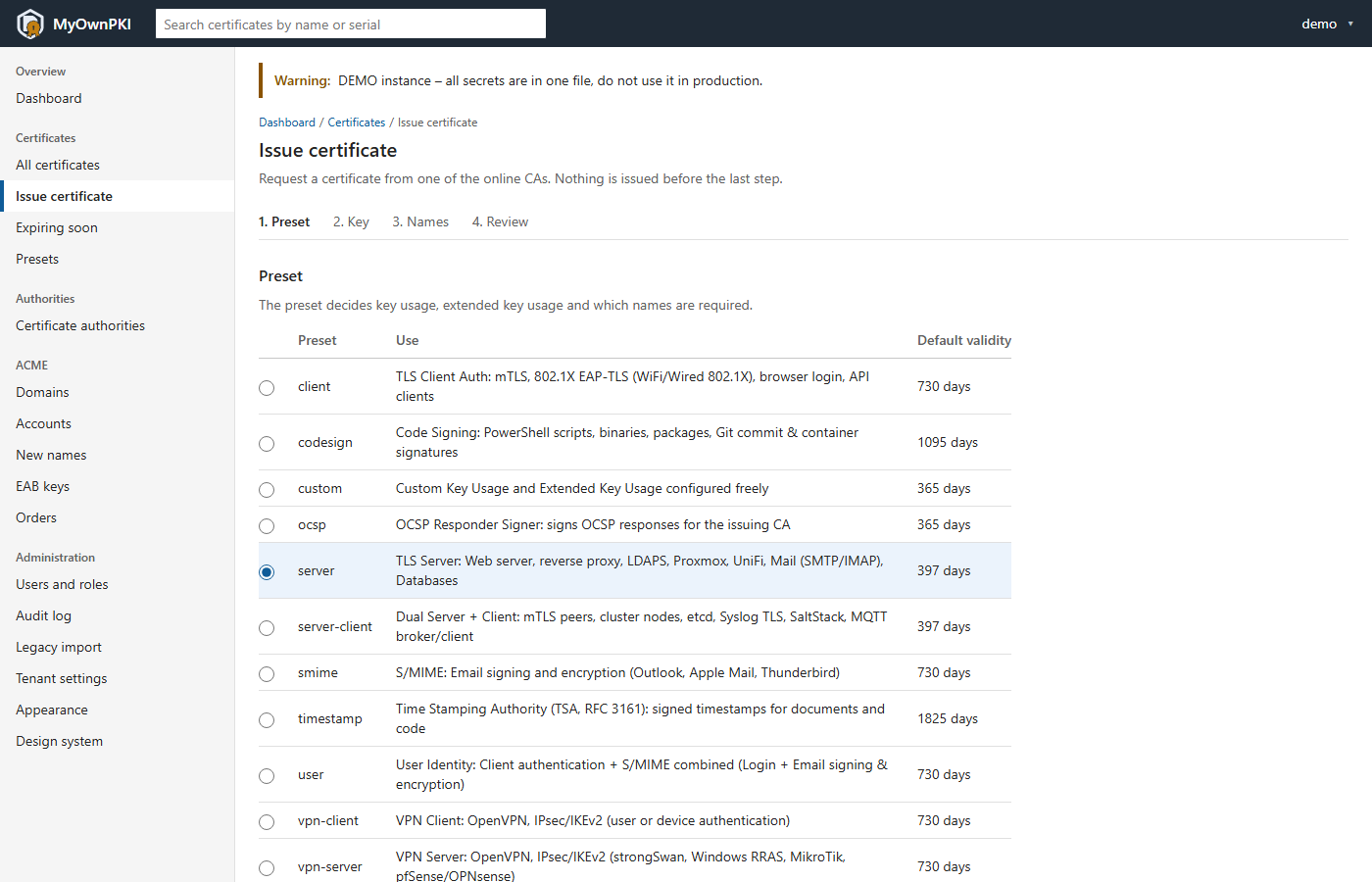
- Preset. Choose
serverfor a TLS server and the issuing CA. The preset decides key usage, extended key usage and which names are required; the list shows each default validity. The CA list shows the longest validity each CA allows. - Key. Paste the request, or upload it as a
.csr,.pemor.derfile (at most 64 KiB; an upload replaces the pasted text). Validity (days) starts at the preset default, capped by the CA. The other choice, Generate the key on the server, is greyed out unless the tenant allows it (Administration → Tenant settings, “Let the server generate keys”). Prefer the request: then no copy of the key exists anywhere else. - Names. The names of your request fill the fields. Check them: what the form says is issued, not what the request asks for, and the extensions always come from the preset. The common name may have at most 64 characters. Clients match host names against the subject alternative names, not the common name.
- Review and press Issue certificate. You land on the certificate page with the serial number. If the policy refuses, the wizard stays on the review step and lists every reason (for example a name outside the CA’s name constraints, or a validity beyond the CA’s maximum).
Download what you need
The certificate page has a group of download links:
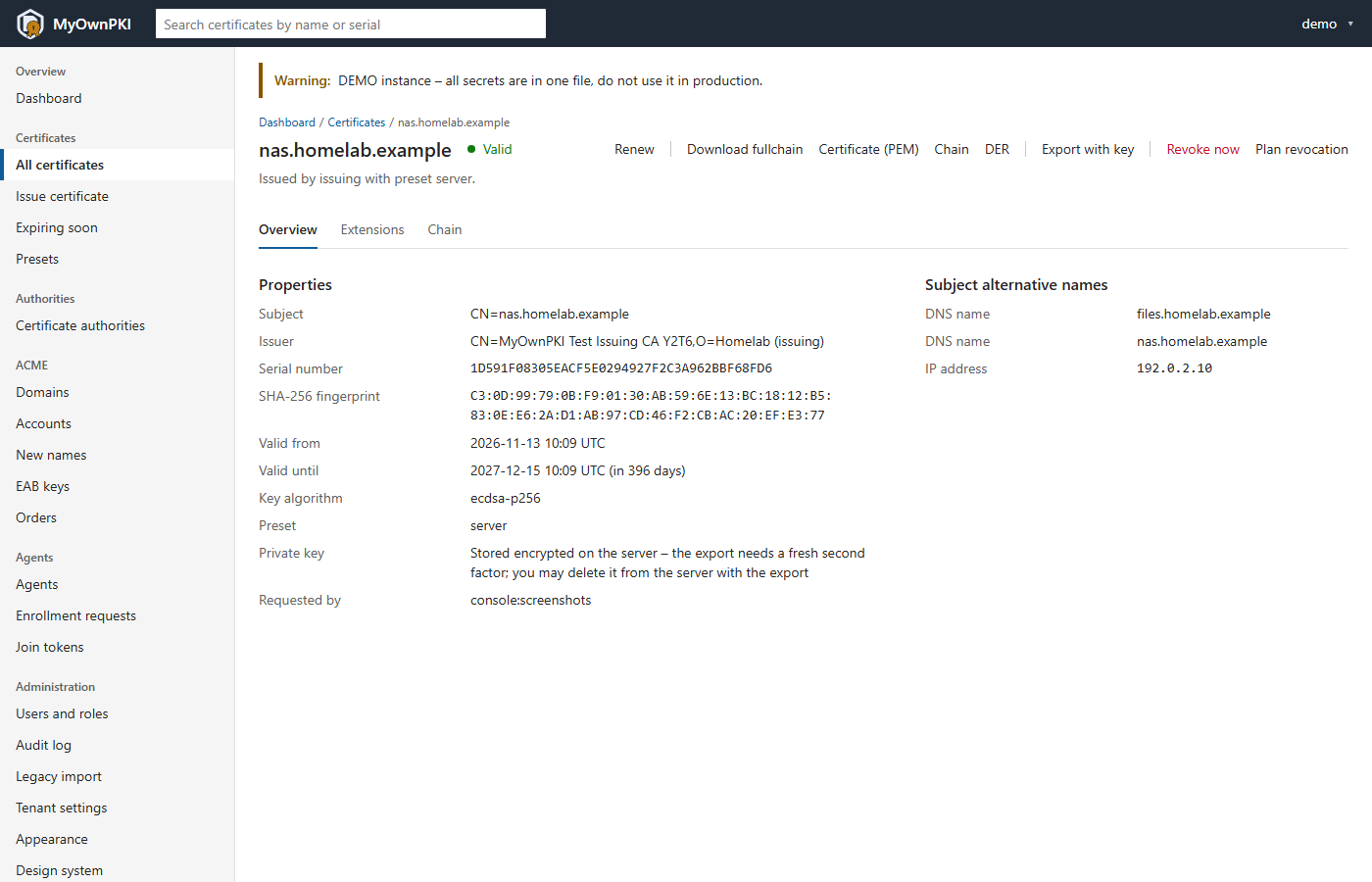
| Link | What the file holds | Use it for |
|---|---|---|
| Download fullchain | The certificate followed by the intermediates, without the root | nginx, Caddy, Traefik, most servers: one file as the certificate |
| Certificate (PEM) | The certificate alone | Applications that want the chain separately |
| Chain | The intermediates from the issuing CA up to just below the root | The second file, if the server wants certificate and chain apart |
| DER | The certificate in binary form | Devices that want .crt or .cer |
| Export with key | The private key, in one of three formats | Only with a server-generated key |
The root is never part of a chain: clients already have it as their trust anchor. Give clients the root from the trust page (operations guide §11).
With a request you already hold the key, so there is nothing to export. With a server-generated key, Export with key needs a fresh second factor, is written to the audit log, and offers PKCS#12 (a password of at least 12 characters), the key alone as unencrypted PKCS#8 PEM, or certificate, chain and key in one PEM (for HAProxy). You may also delete the key from the server with that download; older backups still hold it, encrypted. Only an operator or admin of the issuing CA sees the command.
Check it worked
Check the chain against your root. The fullchain file holds the certificate first, so it serves as the leaf and as the intermediates:
openssl verify -CAfile root.pem -untrusted www.homelab.lan-fullchain.pem www.homelab.lan-fullchain.pem
The answer is OK. Print the names, the usage and the revocation addresses:
openssl x509 -in www.homelab.lan-fullchain.pem -noout -subject -dates -ext subjectAltName,keyUsage,extendedKeyUsage,crlDistributionPoints,authorityInfoAccess
Check that the key belongs to the certificate: both lines must print the same hash.
openssl x509 -in www.homelab.lan-fullchain.pem -noout -pubkey | openssl sha256
openssl pkey -in www.homelab.lan.key -pubout | openssl sha256
When it fails
| What you see | Usually | What to do |
|---|---|---|
| No CA in the list, or the page says no CA allows your role | Your role is viewer, or only offline CAs exist | Ask an admin for the operator role on the issuing CA; create an online intermediate |
| “The server is sealed – nothing was issued.” | The server restarted | An instance admin unseals it (Installation) |
| “Nothing was issued – the policy refused the request” with reasons | Name constraints, validity or preset rules of the CA | Change the names or the validity; the reasons say which |
| The request is rejected on the Key step | Pasted text must be one PEM request with a valid signature; an uploaded file may be PEM or DER and at most 64 KiB | Check with openssl req -in www.homelab.lan.csr -noout -verify |
| Generate the key on the server is greyed out | The tenant switch is off | Use a request, or ask an admin |
openssl verify says “unable to get local issuer certificate” |
The root or an intermediate is missing | Pass the right root with -CAfile and the chain with -untrusted |
More in Troubleshooting.
Next steps
- Make the host renew by itself: Certbot, or the agent (Adding hosts).
- Replace or withdraw the certificate later: Renew and revoke.
- Put the certificate into a service: Recipes.